
Smart Filing
Smart Filing takes a whole folder or ZIP of documents and puts each file on the request it answers. It works out what each file is, suggests where it goes across all the projects in the deal, and suggests new requests for files nothing asked for. Nothing is added or created until you review it and click Add.
Watch: File a whole folder with Smart Filing · 1:13 · captions available
Overview
Clients rarely send documents one request at a time. They send a folder called “stuff for the buyer”, a ZIP from their bookkeeper, or forty PDFs named doc00518.pdf. Filing that by hand means opening each file to see what it is, then finding the request it answers. Smart Filing does the opening and the finding, and leaves the decision to you.
Before You Start
Who Can Use It
- Owners, admins and contributors on a deal can use Smart Filing. Reviewers and guests can’t.
- The deal must be run by a Vetting Vault subscriber: its creator, or an owner or admin on it, has an active subscription or trial. You can also try it on your sample deal.
- Smart Filing reads files with AI, so it isn’t available on a deal where AI is turned off, or on a locked deal.
- Contributors can only make new requests, sections or projects if the deal allows contributors to. Otherwise, files that fit no existing request stay with them to place. See Team & Roles.
What You Can Add
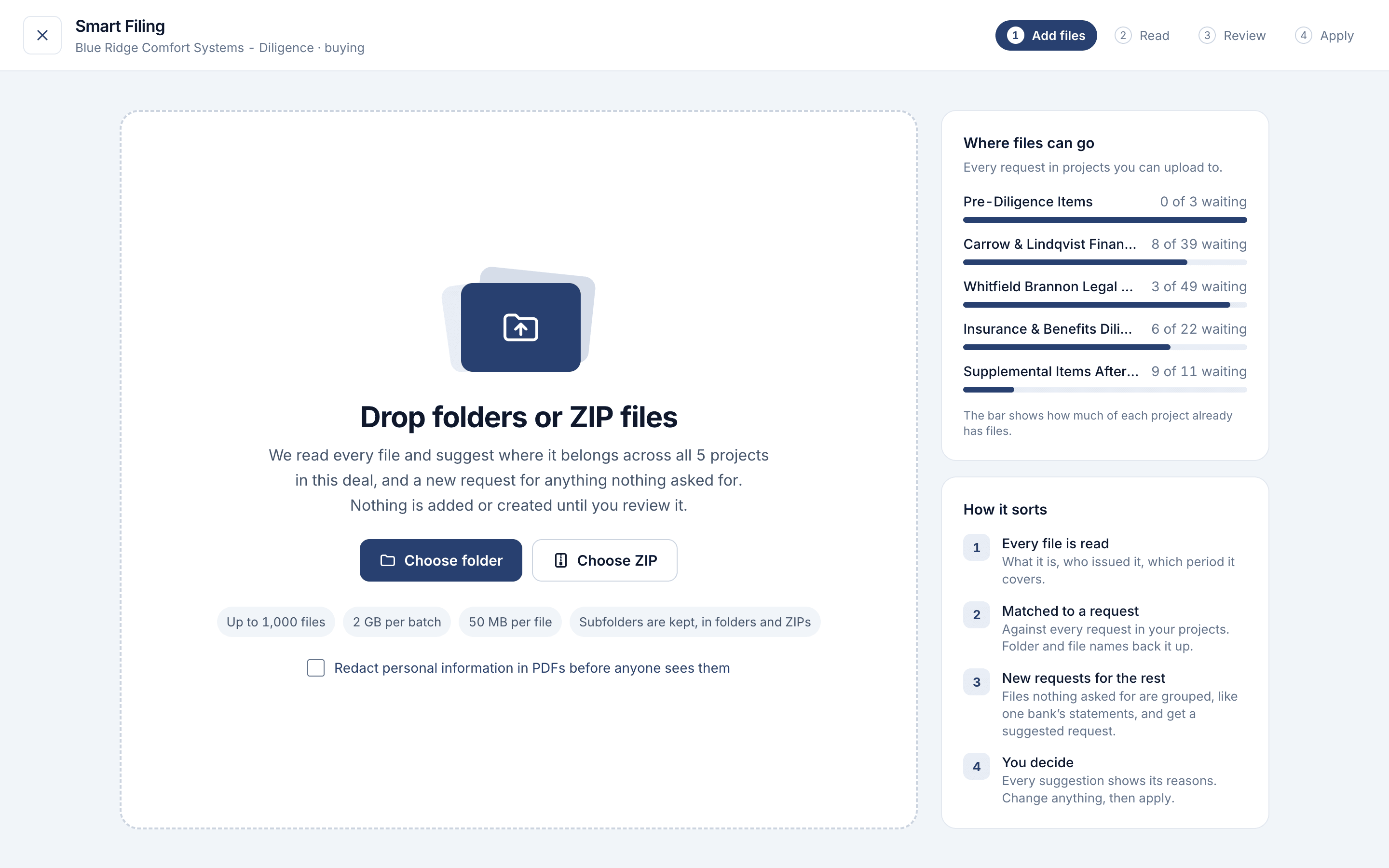
- Up to 1,000 files and 2 GB at a time, and up to 50 MB per file. On the sample deal, up to 25 files and 100 MB.
- Folders and ZIP files. Subfolders are kept, in folders and in ZIPs. A ZIP inside a ZIP, or a password-protected ZIP, is skipped.
- Any document type. Programs and scripts are refused, and system files such as
.DS_StoreandThumbs.dbare skipped. Skipped files are listed so you know what didn’t come in. - What gets read: PDFs, Word, Excel, CSV and text files are read for their contents. Images, slides and scanned PDFs are placed from their file and folder names before you review them.
Adding Files
- Open the deal and click Smart Filing at the top of the page. In a project, it’s also under Actions → Smart Filing: folders or ZIPs.
- Drag folders or ZIP files onto the page, or click Choose folder or Choose ZIP.
- Optional: tick Redact personal information in PDFs before anyone sees them to remove personal information, such as Social Security numbers, from PDFs as they’re added. Unlike the uploader on a request, there’s no list of types to choose from: every type redaction supports is removed. See PII Redaction.
The side of the page shows Where files can go: every project you can upload to, and how much of each already has files.
While Files Are Read
First your browser uploads the files, then Vetting Vault reads each one and works out where it belongs. The page shows how many are uploaded and read, an estimate of the time left, and a feed of what each file was just read as, such as “Bank statement · Chase · 2023-10”.
Keep the tab open until the upload finishes
Once every file has arrived, it’s safe to close the page: reading continues on Vetting Vault’s servers. A banner on the deal shows the progress, and you get a Smart Filing ready to review notification when the files are ready.
Reviewing Where Files Go
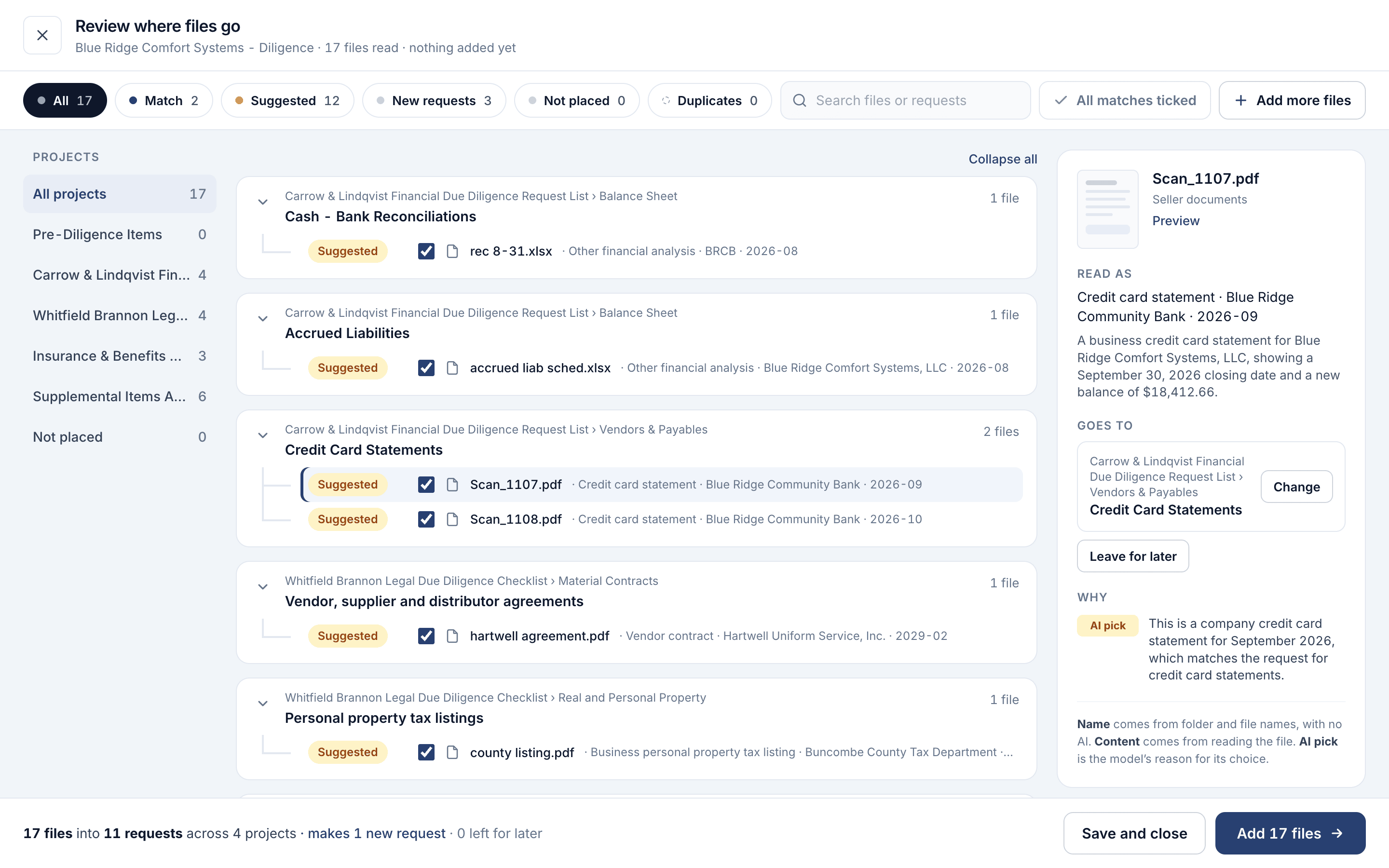
The review screen groups files by where they’re going. Each request is a header showing its project and section and how many files are headed there, with its files listed underneath, each with its label and a tick box. Click a request’s arrow to fold it away, or Collapse all to see just the requests. Filter by label, search files or requests, or pick a project on the left. Click any file to see what it was read as, where it’s going, and why, and to preview it.
Match, Suggested and New Request
- Match: the file’s contents or name point to the same request the AI picked.
- Suggested: the AI picked the request, but the name and contents don’t confirm it. Worth a look.
- New request: nothing in the deal asked for this file, so a new request is suggested for it.
- Not placed: nothing fits, and the file waits for you.
- Duplicate: a file with the same name and size is already in the deal. Duplicates start unticked.
Every file shows its reasons under Why: Name (folder and file names, with no AI), Content (what was read in the file) and AI pick (the model’s reason for its choice).
Changing a File’s Destination
- Change opens a picker: search every request in the deal, choose a new request, or put the file on another file’s new request.
- Leave for later keeps the file out of this round, for you to place later.
- Put in Unsorted puts it on an “Unsorted files” request in that project, made when you add.
- Untick a file to leave it out.
Every change is saved as you make it. Click Save and close and come back later, or click Add more files to add to the same batch: only the new files are read, and your choices stay.
New Requests and Projects
Files that nothing asked for are grouped, such as one bank’s statements or one company’s tax returns, and each group gets a suggested request with a title, a description and a place in the deal. Click Edit to change it, or Don’t create to drop it. On a new deal with no requests yet, a single top folder is suggested as the project and the folders inside it as sections.
Nothing is created early
Adding the Files
The footer sums it up, for example “18 files into 9 requests across 5 projects”. Click Add N files to add every ticked file. Matches, suggestions and new requests start ticked, so look them over first.
Adding runs on Vetting Vault’s servers, so you can close the page. When it’s done:
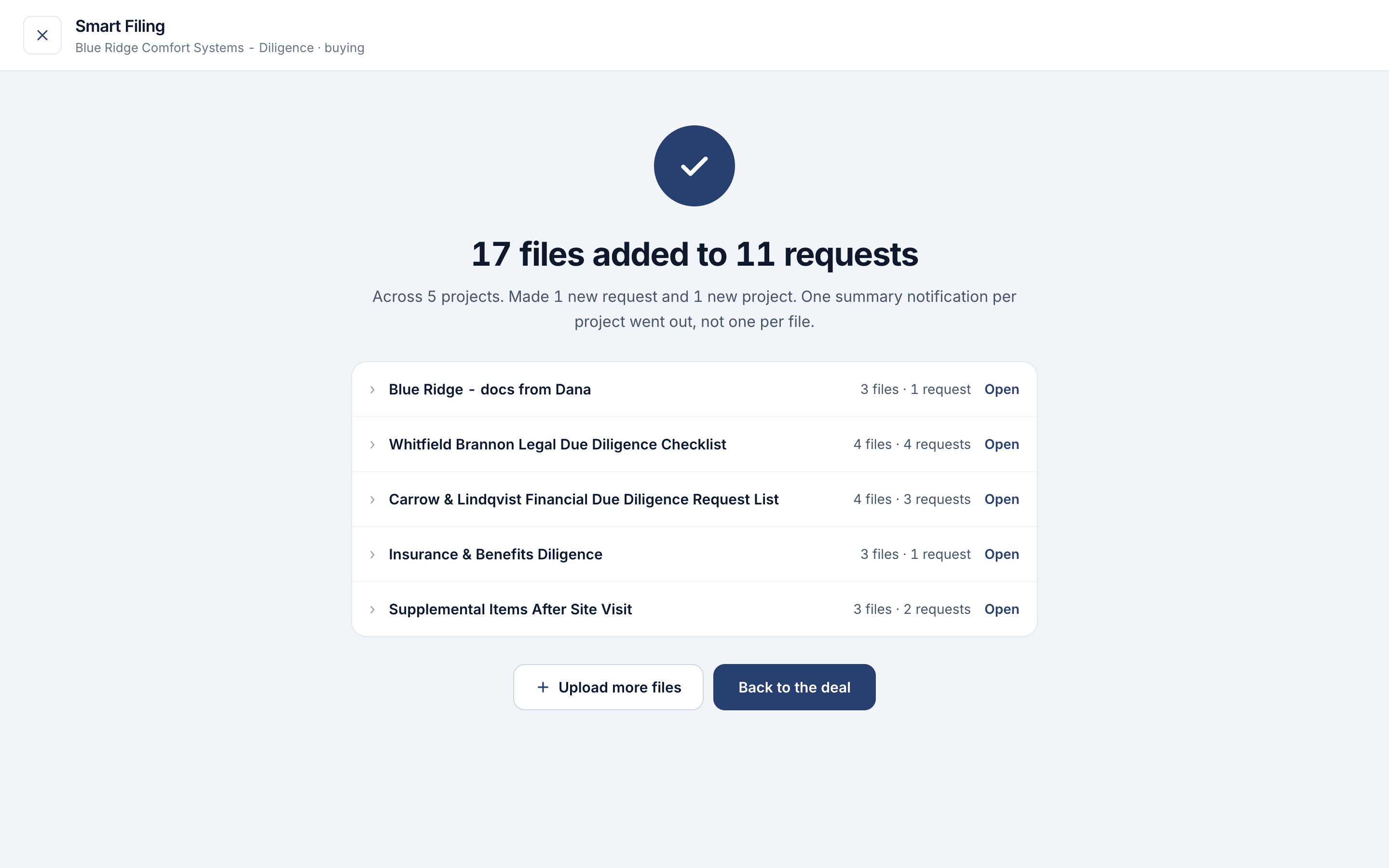
- Each file is on its request, with the summary and search that every uploaded file gets.
- The new requests, sections and projects you kept are made.
- The deal’s activity log shows that you added the files with Smart Filing, and you get a Files added notification for each project.
- The Done screen lists where every file went, with a link to each request.
Files Left for Later
Files you left for later, or that fit nowhere, stay in the batch for 30 days. No one else on the deal can see them until they’re placed. A banner on the deal reminds you; click Place them to finish.
How Smart Filing Decides
Each file is read for what it is, who issued it and which period it covers. The AI then compares the file with every document request in the projects you can upload to, and picks the one that asks for it, or none. Separately, word-matching rules compare the file’s name, folder and contents with each request. When both agree, the file is a Match; when only the AI picked it, it’s Suggested.
Good request titles help
Common Questions
Does anything go into the deal before I click Add?
No. Files wait in the batch, and suggested requests and projects aren’t made, until you click Add. Until then, only you and the deal’s owners and admins can see the batch.
Can I close the page?
Yes, once every file has uploaded. Reading, matching and adding run on Vetting Vault’s servers. Closing the page during the upload itself skips the files not sent yet.
Can an admin finish someone else’s batch?
Yes. Owners and admins can review and add a batch someone else uploaded. The files are added under the name of the person who clicks Add. Only the person who uploaded the batch can add more files to it.
What if I ticked redaction?
The files are placed from their names and folders, without reading their contents first, and personal information is removed from PDFs (up to 50 MB each) as they’re added.
How is this different from the normal uploader?
The uploader on a request adds files to that one request. Smart Filing takes a whole folder for the whole deal and works out which request each file belongs on. See File Management.