
Two-Factor Authentication & Security Settings
Deals involve sensitive financial data, confidential documents, and privileged information. Vetting Vault provides two-factor authentication and automatic session management to keep your deal workspace secure.
Overview
When you are managing due diligence for an acquisition, loan underwriting, or any transaction involving financial records, tax returns, legal agreements, and proprietary business data, account security is not optional — it is essential. A compromised account does not just affect one person; it can expose an entire deal’s worth of confidential information to unauthorized parties.
Vetting Vault’s security settings give you two layers of protection:
- Two-factor authentication (2FA) — Requires a time-based code from your phone in addition to your password when signing in. Even if your password is compromised, an attacker cannot access your account without your authenticator app.
- Session management — Automatically ends inactive sessions and enforces maximum session durations so that an unattended browser does not become a security liability.
Security settings are per-user
Two-Factor Authentication
Two-factor authentication (2FA) adds a second verification step when you sign in. After entering your password, you also enter a six-digit code generated by an authenticator app on your phone. This ensures that knowing your password alone is not enough to access your account.
Why Enable 2FA
Deal workspaces contain some of the most sensitive information in a transaction: financial statements, tax returns, customer lists, employment agreements, intellectual property details, and legal documents. Enabling 2FA protects this information even if your password is compromised through phishing, a data breach on another service, or any other means.
If you are a deal admin managing multiple active deals, your account has access to all of those deals simultaneously. Two-factor authentication is the single most effective step you can take to protect that access.
Supported Authenticator Apps
Vetting Vault uses the TOTP (Time-based One-Time Password) standard, which is supported by all major authenticator apps. You can use any of the following:
- Google Authenticator — Available on iOS and Android. Simple and widely used.
- Microsoft Authenticator — Available on iOS and Android. Integrates with Microsoft accounts if you use those as well.
- Authy — Available on iOS, Android, and desktop. Supports encrypted cloud backup of your tokens so you can recover them if you lose your phone.
- 1Password, Bitwarden, or other password managers — Many password managers can also generate TOTP codes, keeping your passwords and 2FA codes in one secure location.
Choose an app with backup
Enabling 2FA
To enable two-factor authentication on your account:
- Open your Settings page by clicking your profile icon and selecting “Settings.”
- Find the Two-Factor Authentication card in the Security section.
- Click Enable 2FA to start the setup process.
- Vetting Vault generates a QR code and a manual entry key. Open your authenticator app and either scan the QR code or enter the key manually.
- Your authenticator app begins generating six-digit codes that refresh every 30 seconds.
- Save your backup codes — Before completing setup, Vetting Vault displays a set of one-time backup codes. Download or copy these codes and store them somewhere safe. You will need them if you ever lose access to your authenticator app.
- Enter the current six-digit code from your authenticator app into the verification field and click Verify & Enable.
Once verified, 2FA is active on your account immediately. Your next sign-in will require both your password and a code from your authenticator app.
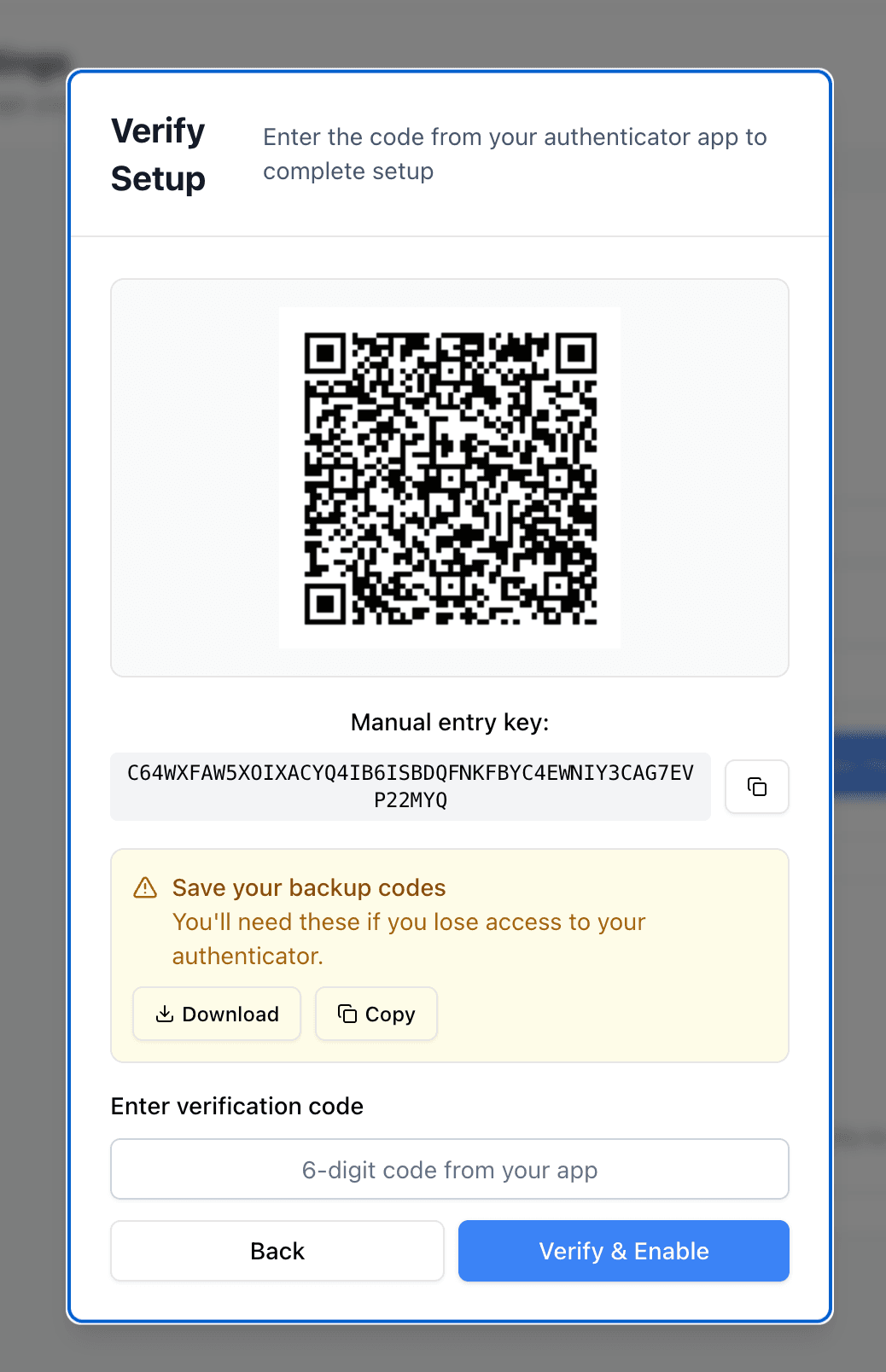
The 2FA setup screen — scan the QR code, save your backup codes, and enter a verification code to enable.
Save your backup codes immediately
Signing In with 2FA
Once 2FA is enabled, your sign-in flow adds one additional step:
- Enter your email and password as usual.
- Vetting Vault prompts you for a verification code.
- Open your authenticator app and enter the current six-digit code.
- You are signed in and taken to your dashboard.
The entire process takes only a few seconds. If you selected “Remember Me” at sign-in, you will not be prompted for 2FA again on that device for 30 days (unless you explicitly sign out).
Backup Codes
Backup codes are one-time-use codes that let you sign in if you cannot access your authenticator app — for example, if your phone is lost, broken, or being replaced.
- Generated during setup — A set of backup codes is created when you first enable 2FA.
- Each code works once — After you use a backup code to sign in, that code is permanently consumed and cannot be used again.
- Track your remaining codes — Your Settings page shows how many backup codes you have left. If you are running low, consider disabling and re-enabling 2FA to generate a fresh set.
- Store them securely — Treat backup codes like a password. Store them in a password manager, a secure note, or a printed copy in a safe location. Do not store them in an unsecured file on your computer.
When signing in, you can enter a backup code in place of the six-digit authenticator code. The system accepts either format in the verification field.
Disabling 2FA
If you need to disable two-factor authentication — for example, to switch to a different authenticator app — you can do so from your Settings page:
- Navigate to Settings and find the Two-Factor Authentication card.
- Click Disable 2FA.
- Enter a current six-digit code from your authenticator app, or use one of your backup codes.
- Click Disable 2FA to confirm.
After disabling, you can re-enable 2FA at any time to generate a new QR code, new manual entry key, and a fresh set of backup codes.
Session Management
Session management controls how long you stay signed in and what happens when you stop actively using the platform. This prevents unauthorized access from unattended browsers or shared devices.
Default Sessions
When you sign in without selecting “Remember Me,” your session has the following behavior:
- 24-hour maximum duration — Your session expires after 24 hours regardless of activity. After that, you need to sign in again.
- Activity heartbeat — While you are actively using Vetting Vault, the platform sends a heartbeat every five minutes to confirm you are still present. This keeps your session fresh on the server.
Default sessions are appropriate for daily use on a personal, trusted device. You sign in at the start of your workday and your session remains active throughout normal working hours.
Remember Me
Selecting “Remember Me” when you sign in extends your session significantly:
- 30-day rolling session — Your session persists for up to 30 days. As long as you return to Vetting Vault within 30 days, you stay signed in.
- No idle timeout — Remember Me sessions do not expire due to inactivity. You can close your browser, leave for the weekend, and return on Monday still signed in.
- Survives browser restarts — Closing and reopening your browser does not end a Remember Me session.
Remember Me is convenient for devices that only you use, like your personal laptop. Avoid using it on shared or public devices.
Do not use Remember Me on shared devices
Multi-Tab Behavior
If you have Vetting Vault open in multiple browser tabs, session management synchronizes across all of them:
- Activity in any tab resets all timers — If you are idle in one tab but active in another, the active tab’s activity keeps all tabs alive. You do not need to worry about an idle tab timing out while you are working in a different one.
- Logout propagates to all tabs — If you log out in one tab (or if your session expires), all other Vetting Vault tabs log out simultaneously. There is no risk of leaving a stale session open in a forgotten tab.
Works across tabs automatically
Best Practices
The following recommendations will help you and your team maintain strong security across your deals:
- Enable 2FA for every team member — A deal is only as secure as its least-protected account. Encourage everyone on your deal team — admins and contributors alike — to enable two-factor authentication. One compromised account can expose the entire deal.
- Use a reputable authenticator app — Stick with well-known authenticator apps like Google Authenticator, Microsoft Authenticator, or Authy. Avoid SMS-based authentication when possible, as SIM swapping attacks can intercept text messages.
- Store backup codes in a password manager — Your backup codes are your safety net. Store them in a password manager or another secure, encrypted location. Do not leave them in a plain text file on your desktop or in an email to yourself.
- Do not share credentials — Every person who needs access to a deal should have their own account. Since contributor accounts are free, there is no cost reason to share login credentials. Shared accounts bypass 2FA protections and make it impossible to maintain an accurate audit trail.
- Log out on shared devices — If you sign in on a device that is not exclusively yours, always log out when you are finished. Do not rely on session timeout alone.
- Review the Remember Me setting — Remember Me is a convenience feature for personal devices. If you are unsure whether a device is secure, sign in without Remember Me so your session will expire automatically.
- Regenerate backup codes periodically — If you have used some of your backup codes, or if it has been a long time since you generated them, consider disabling and re-enabling 2FA to get a fresh set. This ensures you always have a full set of working recovery codes available.
- Keep your authenticator app updated — Make sure your authenticator app is running the latest version. Updates often include security improvements and bug fixes.
Set a team security policy