
PII Redaction
Automatically remove sensitive personal information from documents at the point of upload. Keep your deal workspace clean and compliant without manual redaction or third-party tools.
Overview
Due diligence documents — tax returns, bank statements, K-1 schedules, payroll records — often contain personally identifiable information (PII) such as Social Security numbers, bank account numbers, and credit card details. When these documents are shared across deal teams, that sensitive data travels with them.
Vetting Vault’s PII Redaction feature removes sensitive information from PDF documents at the moment of upload, before the file ever reaches your deal’s data room. The original file with PII is never stored — only the redacted version is saved. This means every participant in the deal sees a clean document, and sensitive data never sits exposed in your workspace.
PII Redaction is opt-in and off by default. You enable it on a per-upload basis, choose which types of PII to remove, and the setting resets after each upload. This gives you full control over when and how redaction is applied.
Original files are never stored
How It Works
PII Redaction integrates directly into the file upload flow. There is no separate tool to learn or extra step to remember — it is a checkbox on the upload interface you already use.
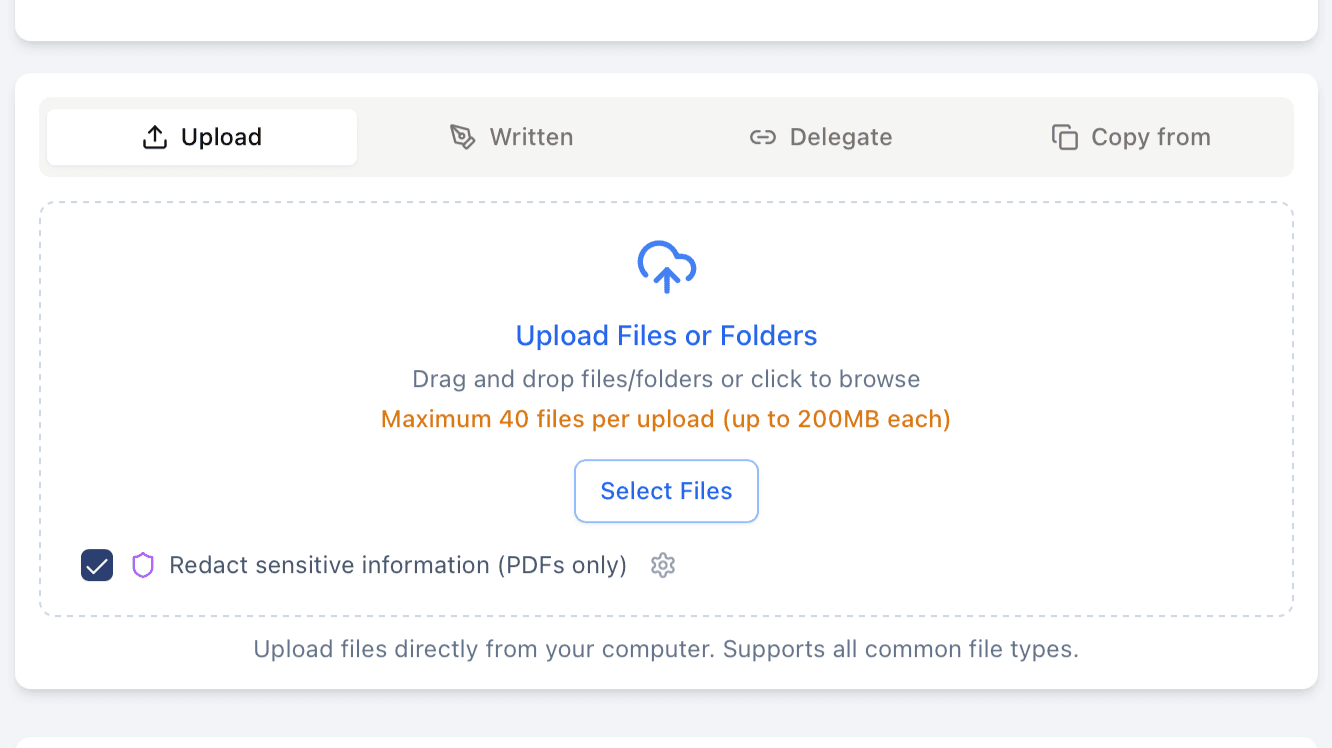
The redaction checkbox appears right on the upload interface — check it before uploading to enable PII removal.
Upload-Time Detection
When you enable redaction and upload a PDF, Vetting Vault’s redaction service scans the document for patterns matching the PII types you selected. The service processes the file in memory — no intermediate copies are saved — and returns a clean version with all matched PII removed.
The upload interface shows two progress phases so you always know where things stand:
- Uploading — Your file is transferred to the server.
- Redacting sensitive information — The redaction service processes the document. For scanned documents that require OCR, this step may take a few minutes.
Selective Redaction
You do not have to redact everything. The settings popover (the gear icon next to the redaction checkbox) lets you choose exactly which types of PII to remove. This is important because different deal contexts call for different redaction levels:
- In some deals, you may need to remove only SSNs and EINs while keeping phone numbers and email addresses visible for contact purposes.
- In others, you may want to strip all PII categories for maximum protection before sharing with external parties.
Your PII type preferences are saved per deal, so you do not need to reconfigure them every time you upload. However, the redaction toggle itself always starts in the off position — you must explicitly enable it for each upload session.
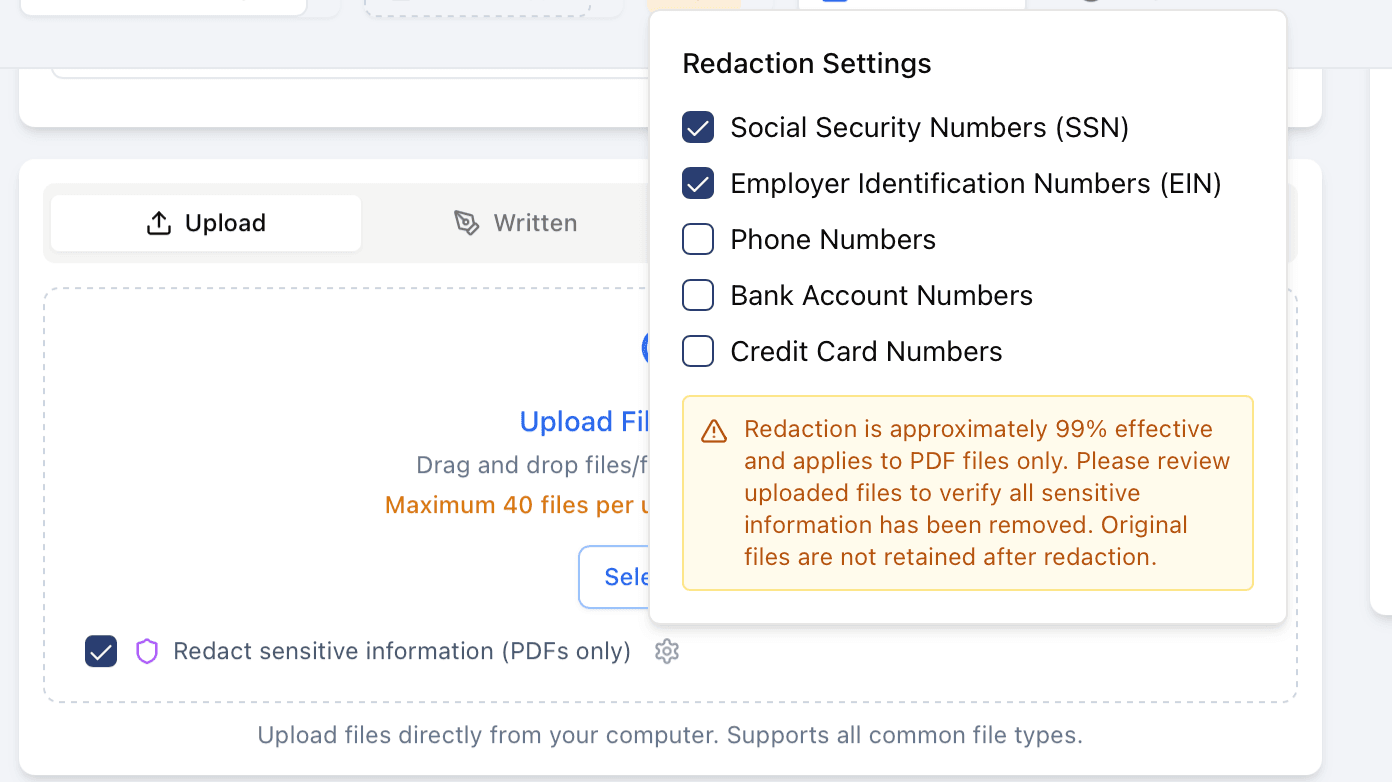
The redaction settings popover lets you choose exactly which PII types to detect and remove.
Supported PII Types
The following categories of personally identifiable information can be detected and removed:
- Social Security Numbers (SSN) — Nine-digit identifiers in standard formats (XXX-XX-XXXX). Enabled by default.
- Employer Identification Numbers (EIN) — Federal tax identification numbers for businesses (XX-XXXXXXX). Enabled by default.
- Phone Numbers — US phone numbers in common formats. Not enabled by default.
- Bank Account Numbers — Account numbers found in financial documents. Not enabled by default.
- Credit Card Numbers — Visa, MasterCard, American Express, and Discover card numbers. Not enabled by default.
Default selections
Using PII Redaction
Step-by-Step Guide
- Navigate to a file request — Open the request where you want to upload documents. The file uploader appears with a drag-and-drop zone.
- Enable redaction — Below the drop zone, check the “Redact sensitive information (PDFs only)” checkbox. A shield icon indicates the feature is active.
- Configure PII types (optional) — Click the gear icon next to the checkbox to open the redaction settings popover. Select or deselect the PII types you want to remove. SSN and EIN are checked by default.
- Select your files — Drag files into the drop zone or click to browse. You can upload multiple files at once.
- Upload — Click the upload button. The progress indicator shows “Uploading” followed by “Redacting sensitive information” as the service processes each PDF.
- Review results — After upload completes, redacted files appear in the file list with a “Redacted” badge and a shield icon. The filename includes “_redacted” before the extension (e.g.,
tax_return_redacted.pdf).
Redaction is approximately 99% effective
Redaction Indicators
Redacted files are clearly marked throughout the platform so your team always knows which documents have been processed:
- Shield icon and “Redacted” badge — Appears next to the filename in the file list, using a green badge to indicate the file was processed.
- Filename suffix — Redacted files have “_redacted” appended before the file extension, making them identifiable at a glance even when downloaded.
- Zero PII notification — If the service scans a document and finds no matching PII, you receive a notification confirming that no sensitive information was detected. The file is still saved normally.
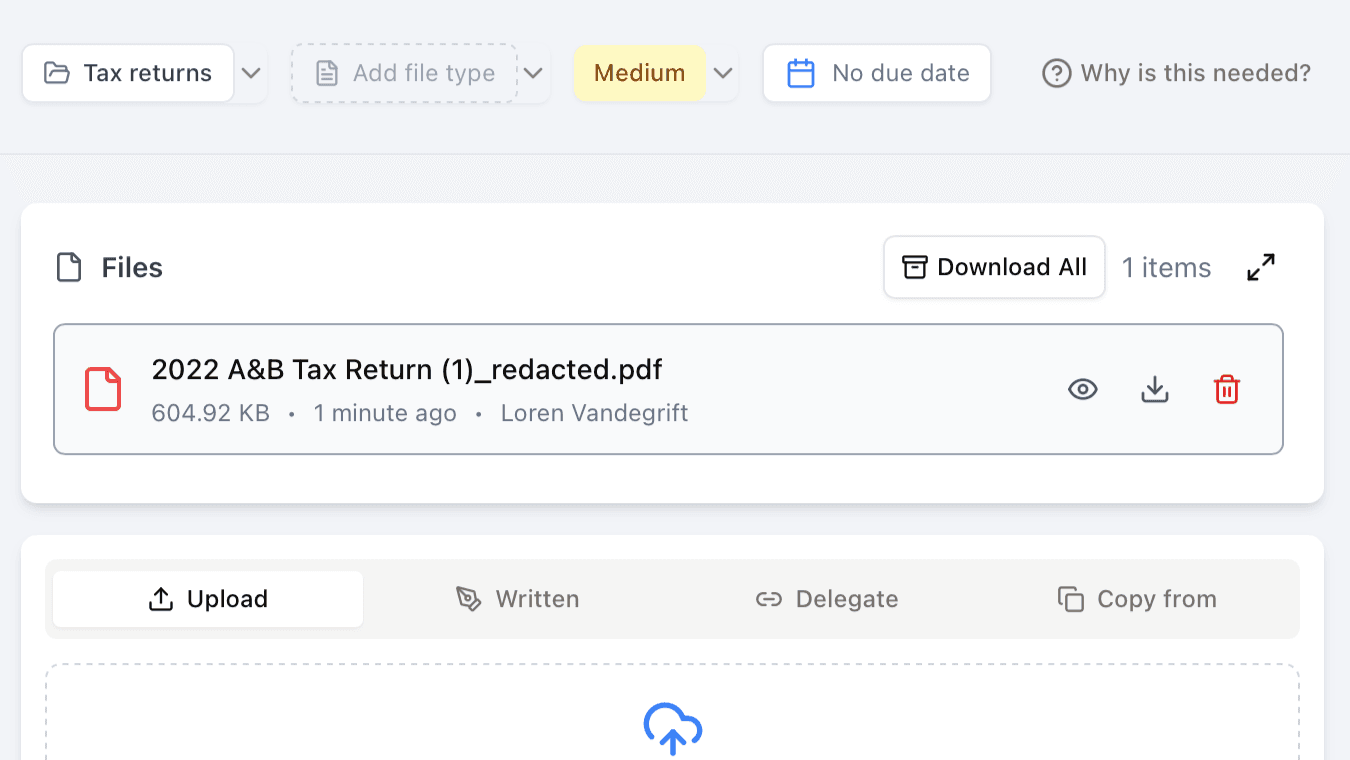
Redacted files are clearly marked with a “_redacted” suffix so your team always knows which documents have been processed.
Supported File Types
PII Redaction currently supports PDF files only. This includes:
- Standard PDFs — Digitally created documents with selectable text (financial statements, tax forms, reports).
- Scanned PDFs — Image-based PDFs are processed using OCR (optical character recognition) to detect PII in the scanned content. Note that scanned documents may take longer to process — up to a few minutes for large files.
Non-PDF files (Word documents, Excel spreadsheets, images) are uploaded normally when redaction is enabled. You will see a notification confirming that redaction applies to PDF files only.
There is a 50 MB size limit for redaction. PDFs larger than 50 MB cannot be processed during upload. If you need to redact a file that exceeds this limit, contact your deal administrator about using the admin Redaction Tool, which can handle larger files separately.
Password-protected PDFs
Best Practices
The right redaction approach depends on the type of deal and the documents involved. Here are recommendations for common scenarios.
M&A Due Diligence
Mergers and acquisitions involve extensive document exchange between buyer and seller teams, often including financial records with employee PII:
- Tax returns and K-1s — Enable SSN and EIN redaction. Individual SSNs on K-1 schedules and personal tax returns should always be redacted before sharing with the buyer’s team.
- Payroll records — Enable SSN and bank account number redaction. The buyer needs to see compensation levels and headcount, not individual employee identifiers.
- Customer and vendor lists — Consider keeping phone numbers and email addresses visible if the buyer needs them for customer concentration analysis, but redact SSNs if any are present.
- Insurance documents — Enable all PII types. Policy documents may contain a mix of personal identifiers that are not relevant to the deal analysis.
Lending & Underwriting
Loan applications and underwriting packages often contain the most concentrated PII:
- SBA loan packages — Enable SSN and EIN redaction for any documents that will be shared beyond the primary loan officer. Personal financial statements often contain full SSNs that are not needed by all reviewers.
- Bank statements — Enable bank account number redaction if sharing statements with parties who do not need to see account details. The financial data (balances, transactions) remains visible.
- Credit reports and applications — Enable all PII types. Credit applications contain the highest density of personal identifiers.
General Recommendations
- Redact before sharing externally — If you are about to invite external advisors, consultants, or additional parties to a deal, redact documents beforehand. It is easier to redact at upload time than to re-upload files later.
- Use the default SSN and EIN settings as a baseline — These are the most sensitive identifiers and the most commonly found in deal documents. Start with these enabled and add other PII types as needed.
- Always review after redaction — Open the uploaded file and spot-check that PII has been removed, especially for documents with non-standard layouts, handwritten notes, or embedded images.
- Communicate with your team — Let deal participants know that certain documents have been redacted. If someone needs the unredacted version for a legitimate reason, they can request the original from the document owner directly outside the platform.
- Consider your compliance requirements — Some industries and jurisdictions have specific rules about handling PII. PII Redaction helps you meet these requirements, but consult your compliance team about which PII types should be redacted in your deals.
Redaction resets after each upload