
Custom Branding
Make Vetting Vault look like your own platform. Add your company logo, brand colors, and custom styling to create a seamless, professional experience for your deal participants.
Overview
When you invite clients and counterparties into a deal, first impressions matter. Custom branding lets you white-label the Vetting Vault workspace so it carries your firm’s identity. Your logo, your colors, and your professional appearance — across the deal workspace, intake forms, and email notifications.
This is especially valuable for advisory firms, brokers, and lenders who want to present a polished, branded experience to their clients. Instead of sending people to a third-party tool that looks unfamiliar, your deal workspace feels like an extension of your own business.
Branding scope
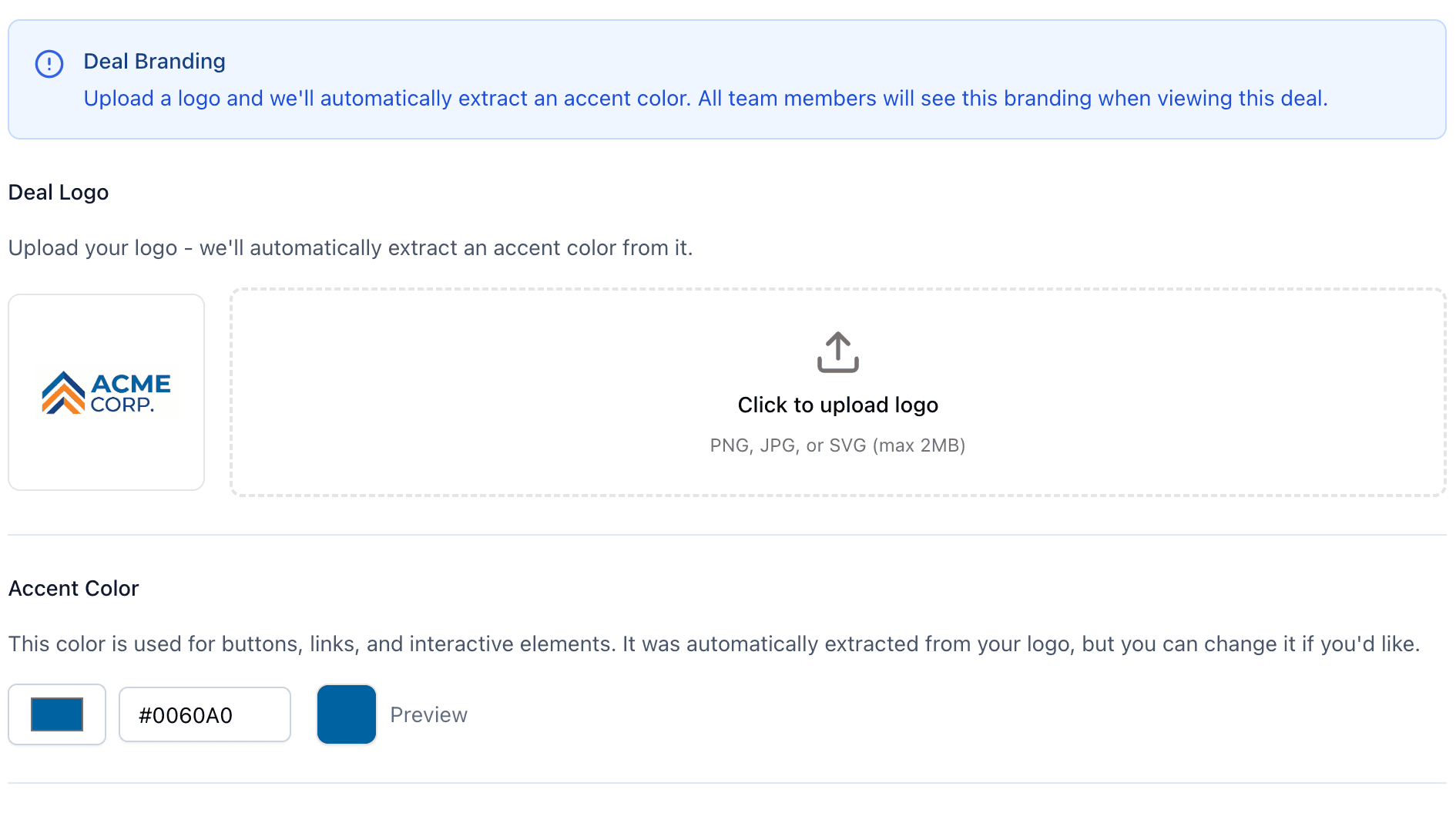
Upload your logo, set your brand color, and choose a sidebar theme — branding applies to all new deals you create.
What You Can Customize
Vetting Vault gives you control over the key visual elements that shape how your workspace looks to deal participants:
- Company logo — Your logo appears in the deal workspace header and in email notifications. This is the most visible branding element and the first thing participants see.
- Brand colors — Set your primary accent color and it carries through buttons, links, highlights, and interactive elements across the entire interface.
- Favicon — The small icon that appears in browser tabs. Upload your own so the tab is recognizable when participants have multiple tabs open.
- Email templates — All notification emails sent from your deals carry your branding. Your logo in the header, your colors in the accents, and your professional appearance in every message.
Setting Up Your Brand
Configuring your branding takes just a few minutes:
- Navigate to account settings — Click your profile icon in the top-right corner and select “Settings”. Go to the “Branding” section.
- Upload your company logo — Click the logo upload area and select your logo file. For best results, use an SVG or PNG with a transparent background. Recommended dimensions are at least 200px wide.
- Set your primary brand color — Use the color picker or enter a hex code to set your primary accent color. This color will be used for buttons, links, and highlights throughout the deal workspace.
- Preview your changes — Before publishing, use the preview panel to see how your branding looks across the workspace, intake forms, and email templates. Make adjustments until you are satisfied.
- Save and publish — Click “Save” to apply your branding. Changes take effect immediately across all your deals.
Logo recommendations
Branding on Intake Forms
Intake forms are often the first touchpoint between your firm and someone contributing documents to a deal. Your branding is applied automatically to every intake form you create.
- Your logo in the header — Recipients see your company logo at the top of the intake form, reinforcing that this is a professional request from your firm.
- Your colors throughout — Buttons, progress indicators, and section headers use your brand color. The form feels consistent with the rest of your business materials.
- No extra configuration needed — Once you set up branding in your account settings, intake forms inherit it automatically. You do not need to configure branding per form or per deal.
This is especially impactful for lenders and advisors who send intake forms to clients and third parties. A branded form builds trust and credibility from the very first interaction.
Branding in Emails
Every notification email sent from your deals carries your branding. This includes notifications for new file uploads, @mentions in deal chat, request assignments, and all other deal activity alerts.
- Your logo in email headers — The email header displays your company logo, not the Vetting Vault logo. Recipients see a professional communication from your firm.
- Your colors in email accents — Buttons, links, and visual accents in the email use your brand color. The email design is cohesive with your other branded touchpoints.
- Professional appearance — All outgoing communications maintain a clean, professional design that reflects well on your business. No generic or third-party branding.
Best Practices
Getting the most out of custom branding comes down to a few key decisions:
- Use a high-quality logo — SVG is the ideal format. If you are using PNG, make sure the file is at least 400px wide with a transparent background. A blurry or pixelated logo undermines the professional impression you are trying to create.
- Choose colors with sufficient contrast — Your primary brand color will be used for buttons and interactive elements. Make sure it has enough contrast against white backgrounds to be readable and accessible. Very light colors may be hard to see.
- Test on mobile and desktop — Use the preview panel to check how your branding looks on different screen sizes. Intake forms in particular are often accessed on mobile devices, so make sure your logo scales well on smaller screens.
- Keep branding consistent — Use the same logo and colors that you use on your website and other business materials. Consistency builds recognition and trust with deal participants who interact with your firm across multiple channels.