
Global Search
Press Cmd+K (Mac) or Ctrl+K (Windows) to search across everything in your deal — requests, files, the text inside documents, chat messages, Q&A threads, comments, projects, sections, and team members. Results appear as you type and link directly to the item you need.
Overview
In an active deal, critical information is spread across hundreds of requests, uploaded documents, chat conversations, Q&A threads, and comments. Finding what you need — a specific clause in a lease, a revenue figure buried in a PDF, or a question your attorney asked last Tuesday — can mean opening dozens of screens and scanning through each one manually.
Global Search eliminates that friction. It gives every deal participant one place to search across all content types in the current deal. Type a few characters and results begin streaming in immediately, organized by type and color-coded so you can scan them at a glance. Click any result (or press Enter) and you are taken directly to the exact item — the specific request, file, chat message, Q&A thread, or comment — in its full context.
Beyond titles and names, Global Search also looks inside your uploaded documents. When files are uploaded to Vetting Vault, the system automatically extracts text from PDFs, Word documents, Excel spreadsheets, and other common formats. This means you can search for a phrase like “accounts receivable” or “change of control” and find every document that contains it — even if the file name gives no indication of what’s inside.
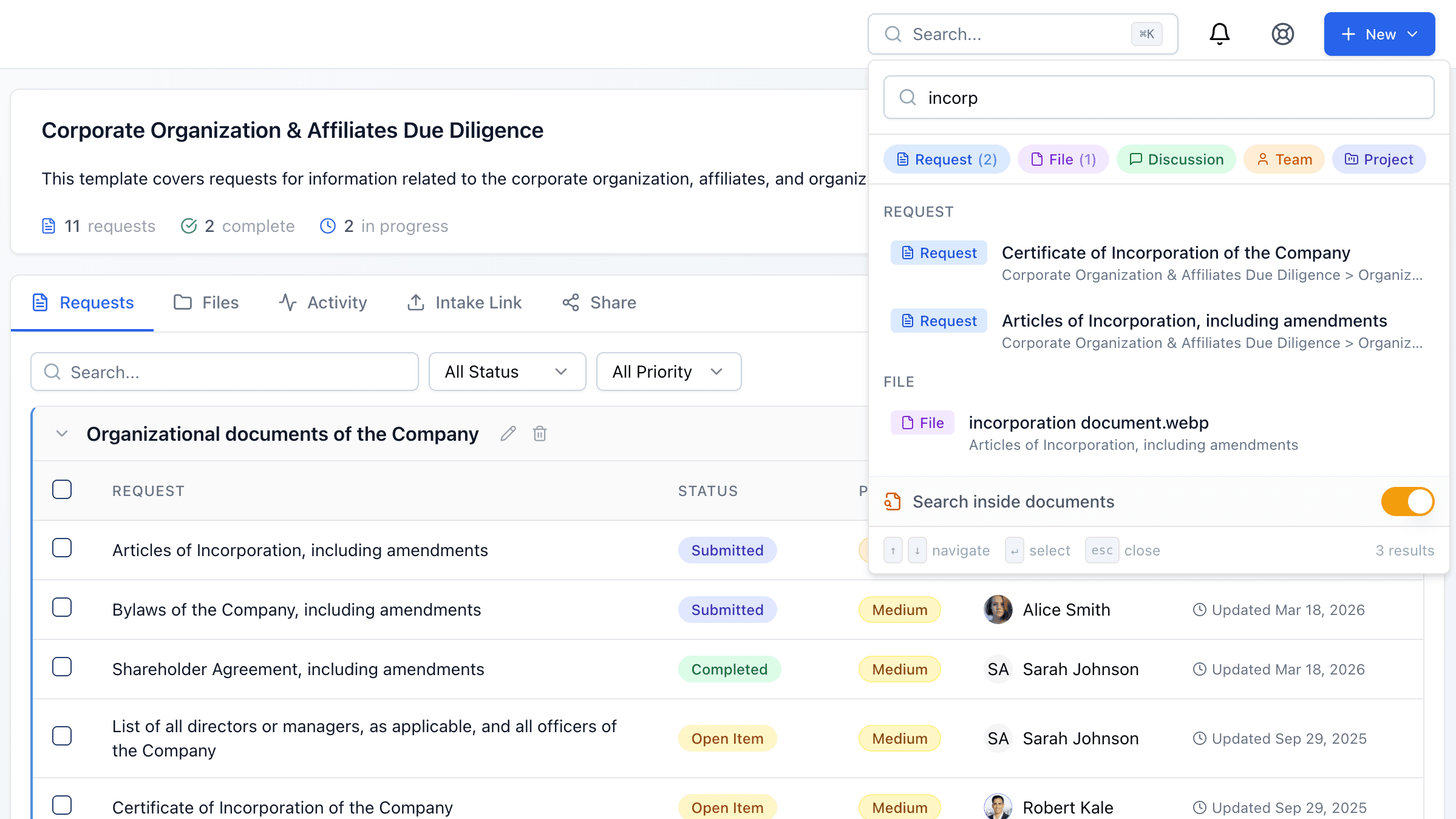
Press Cmd+K to search across everything in your deal — requests, files, file contents, chat messages, and Q&A.
Opening Global Search
There are two ways to open Global Search from anywhere inside a deal:
- Keyboard shortcut — Press Cmd+K on Mac or Ctrl+K on Windows/Linux. This works from any page in the application while you are inside a deal. The search modal opens instantly and is ready for input.
- Search bar in the header — Click the search input in the top navigation bar. On mobile devices, tap the search icon to expand the search field.
Both methods open the same search interface. The keyboard shortcut is the fastest way to get there, and many deal professionals use it as their primary way to navigate Vetting Vault — it is often faster than clicking through deals, projects, and categories.
Keyboard shortcut
What You Can Search
Global Search indexes every major data type in your deal. Here is a breakdown of each type and what fields are searched.
Requests
Requests are the core building blocks of every deal in Vetting Vault. Global Search matches against:
- Request title — The name of the request (e.g., “3 Years of Federal Tax Returns”, “Lease Agreement”).
- Request description — The detailed description or instructions attached to the request. If someone wrote “Please provide the most recent audited version” in the description, searching for “audited” will surface that request.
- Request code — The alphanumeric code assigned to each request (e.g., “A.1.1”, “B.3.2”). You can also use the
#prefix for exact code lookup — see Request Code Lookup below.
Results display the request title, its status, the project it belongs to, and the category (section) name. Clicking a request result opens the request detail modal directly.
Files
Find uploaded documents by their original file name. This is the fastest way to locate a specific file when you know what it is called but do not remember which request it was uploaded to.
- Original file name — Search by full or partial name (e.g., “2024 P&L”, “Articles of Incorporation”, “balance sheet”).
- File type by name — Including the extension in your search can help narrow results (e.g., “cap table xlsx”).
File results show the file name, the request it is attached to, and the project name. Clicking a file result navigates to the project page and opens the request modal with that specific file highlighted.
File Content (Inside Documents)
This is one of the most powerful capabilities of Global Search. When documents are uploaded to Vetting Vault, the system automatically extracts text from supported file types in the background. This means you can search for words and phrases that appearinside documents, not just in their file names.
Supported file types for content extraction include:
- PDF documents — Text is extracted from all pages, including multi-page financial statements and legal agreements.
- Word documents (.docx) — Full text content including paragraphs, tables, and headers.
- Excel spreadsheets (.xlsx) — Cell values across all sheets are indexed, so you can search for specific figures, labels, or account names.
- Plain text and CSV files — Entire file content is indexed.
Content search results appear in a separate “Found in Documents” section below the main results, marked with an amber badge. Each result shows the file name, the request it belongs to, and a highlighted snippet showing the matching text in context. For example, searching for “net income” might return a result like:
“Q3-Financial-Statements.pdf — Found in: Annual Financial Package — ...total net income of $1.2M representing a 15% increase over...”
Content extraction happens automatically
Chat Messages
Search across all Deal Chat messages in the current deal. This is invaluable when you remember a conversation but need to find the exact message — for example, when someone discussed pricing terms, flagged a concern, or shared an update that you need to reference.
- Message content — The full text of each chat message is indexed.
- Sender name — Results show who sent the message so you can quickly identify the right conversation.
Clicking a chat result takes you directly to the Deal Chat page, scrolled to the exact message that matched.
Q&A Questions and Answers
The Q&A system in Vetting Vault lets deal participants ask and answer formal questions. Global Search indexes both sides of these exchanges:
- Question text — The full question as written by the asker. Results show the question category and status (open, answered, etc.).
- Answer text — The full answer text. Results show the answer content and link back to the parent question for full context.
Clicking a Q&A result takes you to the Q&A page with the relevant question thread opened.
Comments
Comments on requests are also searchable. When deal participants leave notes, ask clarifying questions, or provide feedback on a specific request, those comments are indexed by Global Search.
- Comment content — The full text of the comment.
- Associated request — Results show which request the comment is attached to, so you can quickly identify the context.
Clicking a comment result opens the request detail modal with the comment highlighted, so you land exactly where the conversation is happening.
Projects and Sections
You can also search for the organizational structure of your deal:
- Projects — Search by project name or description. Results show the project type and status. Clicking takes you directly to the project page.
- Sections (categories) — Search by section name within a project (e.g., “Financial”, “Legal”, “Environmental”). Results show which project the section belongs to. Clicking takes you to the project page scrolled to that section.
Team Members
Find people on the deal by searching for their name or email address.
- First name, last name, or full name — Search for “Sarah”, “Johnson”, or “Sarah Johnson”.
- Email address — Partial email matches work (e.g., “@firmname.com”).
Results display the person’s name, email, and their role on the deal. Clicking takes you to the team page with that member selected.
How Search Works
Global Search uses a two-wave architecture to deliver the fastest possible experience. The first wave returns instant results from titles, names, and metadata. The second wave searches deeper — inside the actual content of uploaded documents — and streams those results in a moment later.
Wave 1: Fast Metadata Search
The first wave runs immediately as you type (after a short debounce) and typically returns results in under 100 milliseconds. It searches across:
- Request titles, descriptions, and codes
- File names
- Chat messages, Q&A questions, Q&A answers, and comments
- Project names and descriptions
- Section (category) names
- Team member names and email addresses
These results appear grouped by type (Requests, Files, Discussions, Team, Projects) with color-coded badges so you can scan quickly. This wave covers the majority of searches — when you know the name of what you are looking for, you will find it here.
Wave 2: Document Content Search
Once Wave 1 completes, the second wave automatically begins searching inside uploaded documents using PostgreSQL full-text search on the extracted content. This wave typically returns results within 500 milliseconds.
While Wave 2 is running, you will see a “Searching...” indicator in the “Found in Documents” section. Results fade in as they arrive, with a count badge showing how many document matches were found.
If the content search takes too long (over 2 seconds), the system returns partial results and displays a “Partial results” indicator. This ensures the search interface remains responsive even with very large document sets.
Search inside documents toggle
Search Filters
Below the search input, you will see a row of filter chips that let you narrow results to specific types. The available filters are:
- Requests (blue badge) — Request items by title, description, or code.
- Files (purple badge) — Uploaded documents by file name.
- Discussions (green badge) — Chat messages, Q&A questions, Q&A answers, and comments on requests.
- Team (orange badge) — People on the deal by name or email.
- Projects (indigo badge) — Projects and sections by name.
All filters start enabled. Click a filter chip to toggle it off, which hides that type from your results. Click it again to re-enable it. You can combine filters freely — for example, turn off everything except “Discussions” to focus only on chat messages, Q&A items, and comments.
Each filter chip shows a count of how many results matched that type, so you can see at a glance where your search term appears most.
Narrowing results quickly
Navigating Results
Keyboard Navigation
Global Search is designed for full keyboard navigation. You never need to reach for the mouse if you prefer not to:
- Cmd+K / Ctrl+K — Open Global Search from any page.
- Start typing — Results appear as you type with a 300ms debounce. No need to press Enter.
- Up arrow / Down arrow — Move the highlight between results. The highlight works across both Wave 1 and Wave 2 results seamlessly.
- Enter — Navigate to the currently highlighted result.
- Escape — Close the search modal and return to where you were.
A keyboard hint bar at the bottom of the search modal shows these shortcuts as a reminder.
Deep Linking to Results
Every search result is a deep link. When you select a result, you are not just taken to a general area — you land on the exact item:
- Request results open the request detail modal directly, so you can see documents, comments, and status immediately.
- File results open the request modal with the specific file selected for preview or download.
- File content results (from inside documents) open the request modal with the matching file highlighted.
- Chat message results navigate to Deal Chat and scroll to the exact message.
- Q&A results open the Q&A page with the relevant question thread expanded.
- Comment results open the request modal and highlight the specific comment.
- Project and section results navigate to the project page, scrolled to the relevant section.
- Team member results navigate to the team page with that member selected.
Recent Searches
Global Search remembers your last five search queries. When you open the search modal without typing, your recent searches appear as clickable suggestions. Click one to re-run that search instantly.
Recent searches are stored per user and persist across sessions. You can clear them at any time by clicking “Clear recent searches” at the bottom of the suggestions list.
Request Code Lookup
Every request in Vetting Vault has an alphanumeric code (e.g., A.1.1, B.3.2, C.5). If you know the code of the request you need, you can jump to it instantly using the# prefix:
- Open Global Search and type
#A.1.1 - The system performs an exact code match and returns the single matching request
- Press Enter to navigate directly to it
This is particularly useful during calls or meetings when someone references a request by its code number. Instead of scrolling through the request list, type # followed by the code and you are there in seconds.
Tip
# prefix hint appears at the bottom of the search modal when it is first opened: “Use # to search by request code (e.g., #A.1.1)”. This is a handy shortcut to remember, especially when working with large request lists.Tips for Effective Searching
A few habits will help you get the most out of Global Search:
- Be specific with your keywords. “2024 federal tax return” returns better results than “tax.” The more specific your query, the fewer irrelevant results you need to scan through.
- Search for terms inside documents. Don’t just search for file names. If you need to find where “EBITDA” is mentioned, or which document contains “non-compete” language, type those terms and check the “Found in Documents” section.
- Use category and section names. Searching for “Financial” or “Legal” surfaces all requests, projects, and sections with that name, giving you a quick way to browse an entire area of the deal.
- Find past conversations. If you remember discussing something in Deal Chat or Q&A but cannot find the thread, search for a distinctive word from that conversation. The discussion results will surface the exact message or question.
- Use request codes for instant navigation. During calls, type
#A.1.1(or whatever code is referenced) to jump directly to a specific request without browsing. - Use filters to focus. When a broad term returns many result types, toggle the filter chips to show only the type you care about. This is especially useful for common terms that appear in requests, files, and chat simultaneously.
- Use search as your primary navigation. Even when you know where something is, pressing Cmd+K and typing a few characters is often faster than clicking through projects, sections, and requests. Many deal professionals find this becomes their default way to move around Vetting Vault.
- Search across file types. If you are looking for a spreadsheet specifically, include terms like “xlsx” or “Excel” in your search. Similarly, “pdf” narrows results to PDF documents.
Search scope