NDA Agreements
Protect confidential deal information by requiring participants to sign a Non-Disclosure Agreement before they can view any deal data. Vetting Vault handles the entire workflow — from template management to inline signing to PDF generation — so you never need a separate e-signature tool for deal NDAs.
Overview
In M&A transactions, lending processes, and other sensitive deals, confidentiality is non-negotiable. Before a potential buyer, advisor, or contributor sees financial records, customer lists, or proprietary information, they should be bound by an NDA.
Vetting Vault’s built-in NDA system lets you enforce this requirement directly within your deal workflow. When NDA signing is enabled for a deal, new team members see the agreement immediately upon joining and cannot access any deal content — requests, documents, chat, or files — until they sign.
Key capabilities:
- Template library — Create, edit, and manage reusable NDA templates from your account settings.
- Per-deal configuration — Enable or disable NDA requirements on each deal independently, with deal-specific entity names and governing law.
- Inline signing — Signers review the full agreement and sign directly in Vetting Vault. No external tools needed.
- Automatic PDF generation — A signed PDF is generated and stored for every signature, with a full audit trail.
- Forward-only enforcement — Enabling an NDA on an existing deal only affects members added after that point. Existing members are grandfathered in.
- Bypass capability — Deal owners and admins can bypass the NDA requirement for specific members when an NDA was signed externally.
No extra cost
NDA Templates
NDA templates are managed from your account settings under the NDA Templates section. Templates define the editable body of the agreement — the substantive clauses that govern confidentiality, obligations, remedies, and other terms.
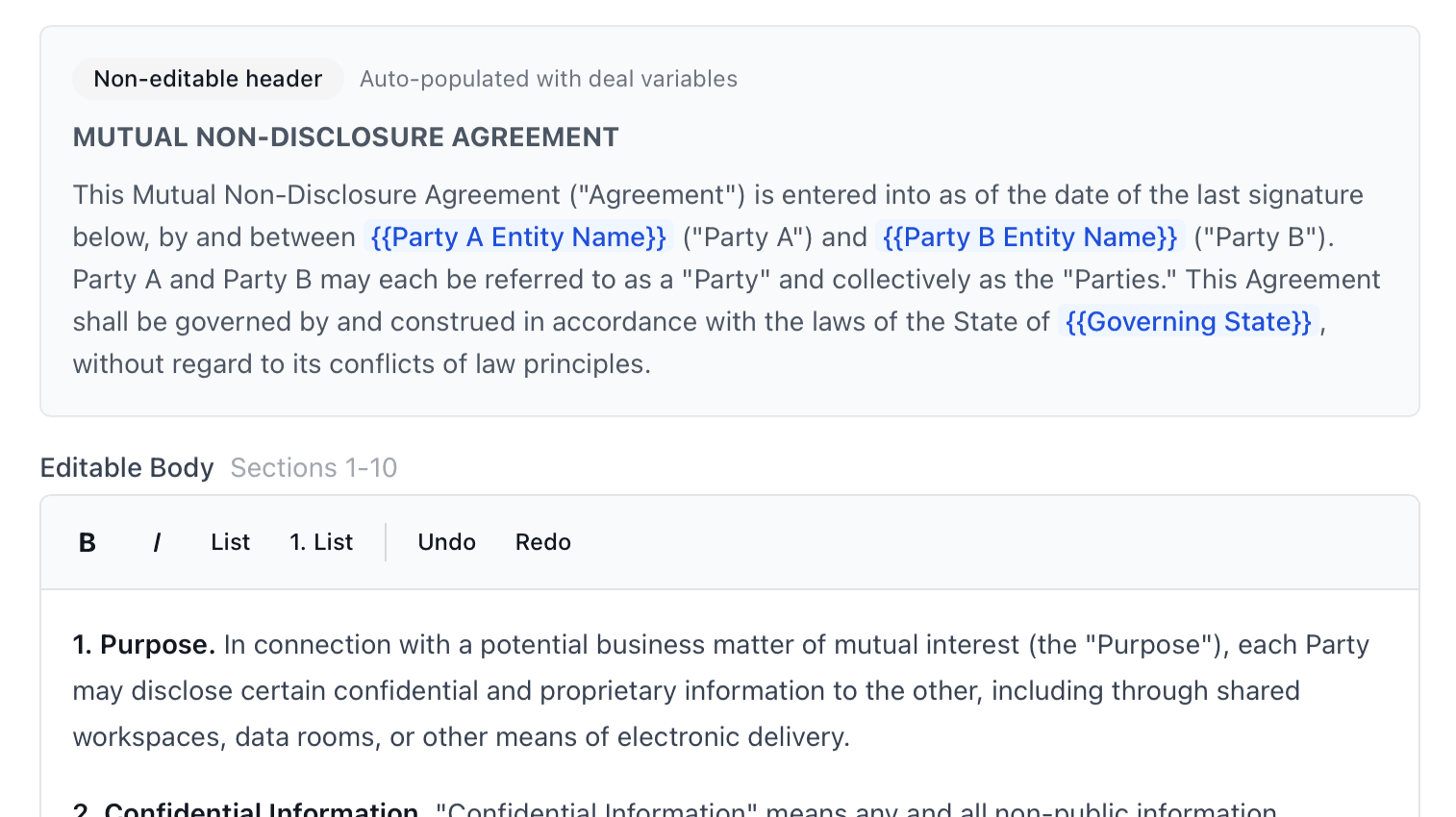
The NDA template editor with auto-populated deal variables and editable body sections.
The Standard Mutual NDA
When you first visit the NDA Templates section, Vetting Vault automatically creates a Standard Mutual NDA template. This is a comprehensive 10-section mutual non-disclosure agreement covering:
- Purpose — Defines the scope of permissible disclosure.
- Confidential Information — What constitutes confidential information and its exceptions.
- Obligations — Duties of the receiving party, including care standards and permitted disclosures.
- Required Disclosure — Handling of legally compelled disclosures.
- Non-Contact — Restrictions on contacting the disclosing party’s employees, customers, and partners.
- No Obligation; No Rights Granted — Clarifies that the NDA does not obligate either party to transact.
- Return or Destruction of Information — Procedures for returning or destroying confidential materials.
- Term — Two-year duration from the date of the agreement.
- Remedies — Equitable relief and injunction rights.
- General Provisions — Entire agreement, amendment, severability, and waiver clauses.
The Standard Mutual NDA is a system template. It cannot be edited or deleted directly. To customize it, clone it and modify the copy.
Header vs. Body
Every NDA in Vetting Vault has two parts:
- Header (non-editable) — The opening paragraph that identifies the parties and governing law. This is automatically populated with deal-specific variables:
{{party_a}},{{party_b}}, and{{governing_state}}. You do not edit the header directly; it is filled in based on your deal configuration. - Body (editable) — The substantive sections of the NDA. This is what you customize in your templates using the rich text editor.
Variable Substitution
The NDA header supports automatic variable substitution. When a signer views the agreement, these placeholders are replaced with real values:
{{party_a}}— Your entity name (as configured on the deal), or the deal name if no entity is specified.{{party_b}}— The signer’s organization (if provided) or their full name.{{governing_state}}— The governing state you selected in the deal NDA settings (default: Delaware).{{effective_date}}— The date of signing.{{deal_name}}— The name of the deal.
Variables are case-insensitive
{{Party_A}}, {{PARTY_A}}, or {{party_a}} — they all resolve to the same value.Creating a Custom Template
To create your own NDA template:
- Go to Settings → NDA Templates.
- Click New Template.
- Enter a descriptive name (e.g., “One-Way Buyer NDA” or “Healthcare Deal NDA”).
- Use the rich text editor to write or paste your NDA body content. The editor supports bold, italic, bullet lists, and numbered lists.
- Click Create Template.
Cloning a Template
If you want to customize the Standard Mutual NDA or any existing template, click the clone icon next to that template. This creates a copy with “(Copy)” appended to the name. The cloned version is fully editable — rename it, modify the body content, and save your changes.
Setting a Default Template
Mark any template as your default by clicking Set Default. The default template is pre-selected when you configure an NDA on a new deal, saving a step in your setup workflow.
System templates are read-only
Configuring NDAs per Deal
NDA requirements are configured at the deal level. Each deal can independently enable or disable NDA signing and choose its own template and settings.
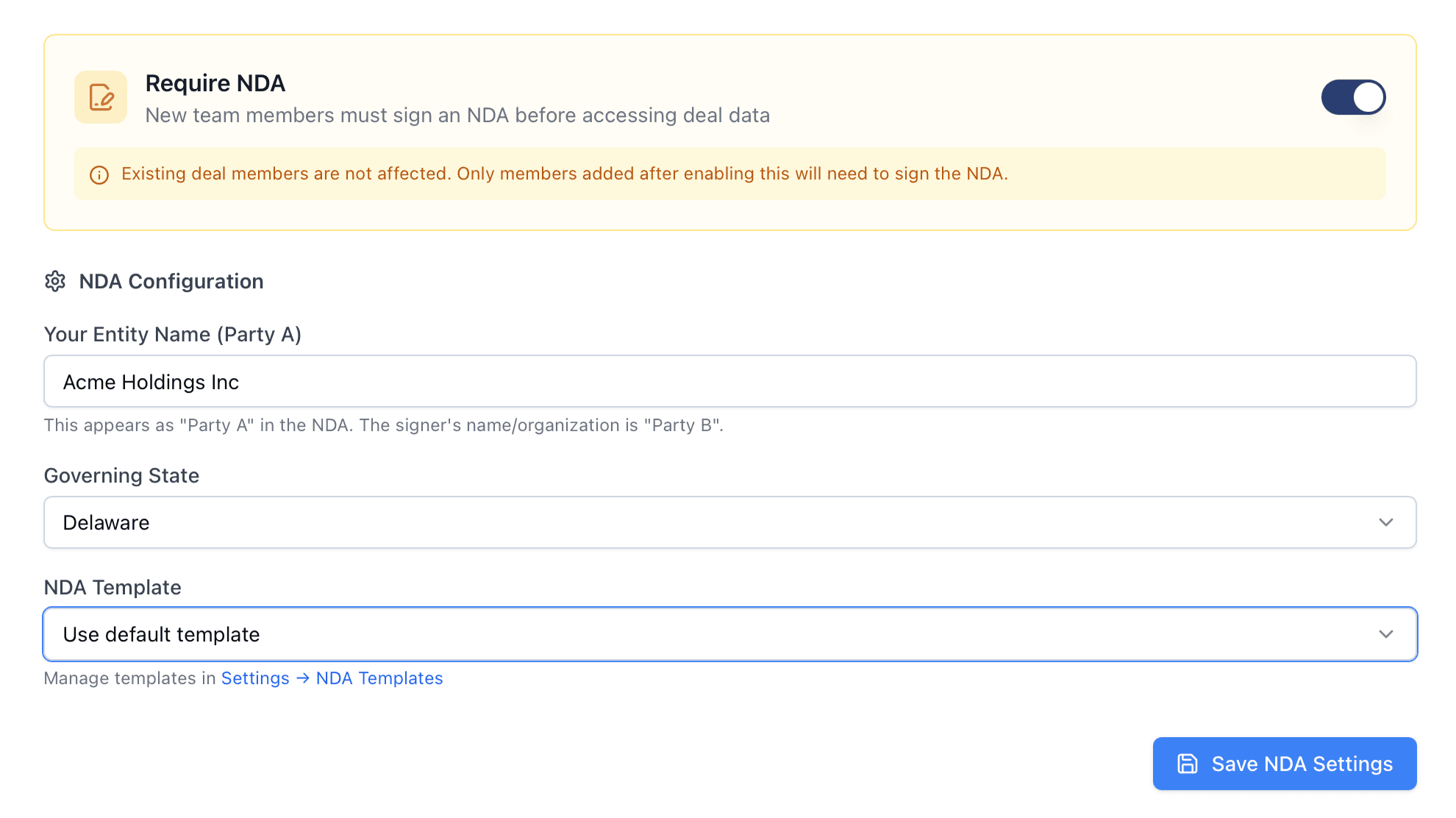
Configure the NDA requirement per deal — enable the toggle, set your entity name, governing state, and choose a template.
Enabling the NDA Requirement
- Open the deal and navigate to the NDA tab in deal settings.
- Toggle Require NDA to on.
- Fill in the configuration fields (described below).
- Click Save NDA Settings.
Forward-only enforcement
Configuration Options
When the NDA requirement is turned on, you configure the following:
- Entity Name (Party A) — Your legal entity name that appears in the NDA header as “Party A.” For example, “Acme Holdings LLC” or “Smith Capital Partners.” If left blank, the deal name is used.
- Governing State — The US state whose laws govern the agreement. Select from a dropdown of all 50 states. The default is Delaware.
- NDA Template — Choose which template to use for this deal. Your template library is shown in the dropdown, with your default template pre-selected. The template’s body content is copied into the deal configuration at save time, so later edits to the template do not affect deals already configured.
Template snapshot
Who Can Configure NDAs
Only the deal owner can enable, disable, or modify NDA settings for a deal. Deal admins and contributors cannot change NDA configuration.
The Signing Experience
When a new member joins a deal that requires an NDA, they are presented with the signing flow before they can access any deal content.
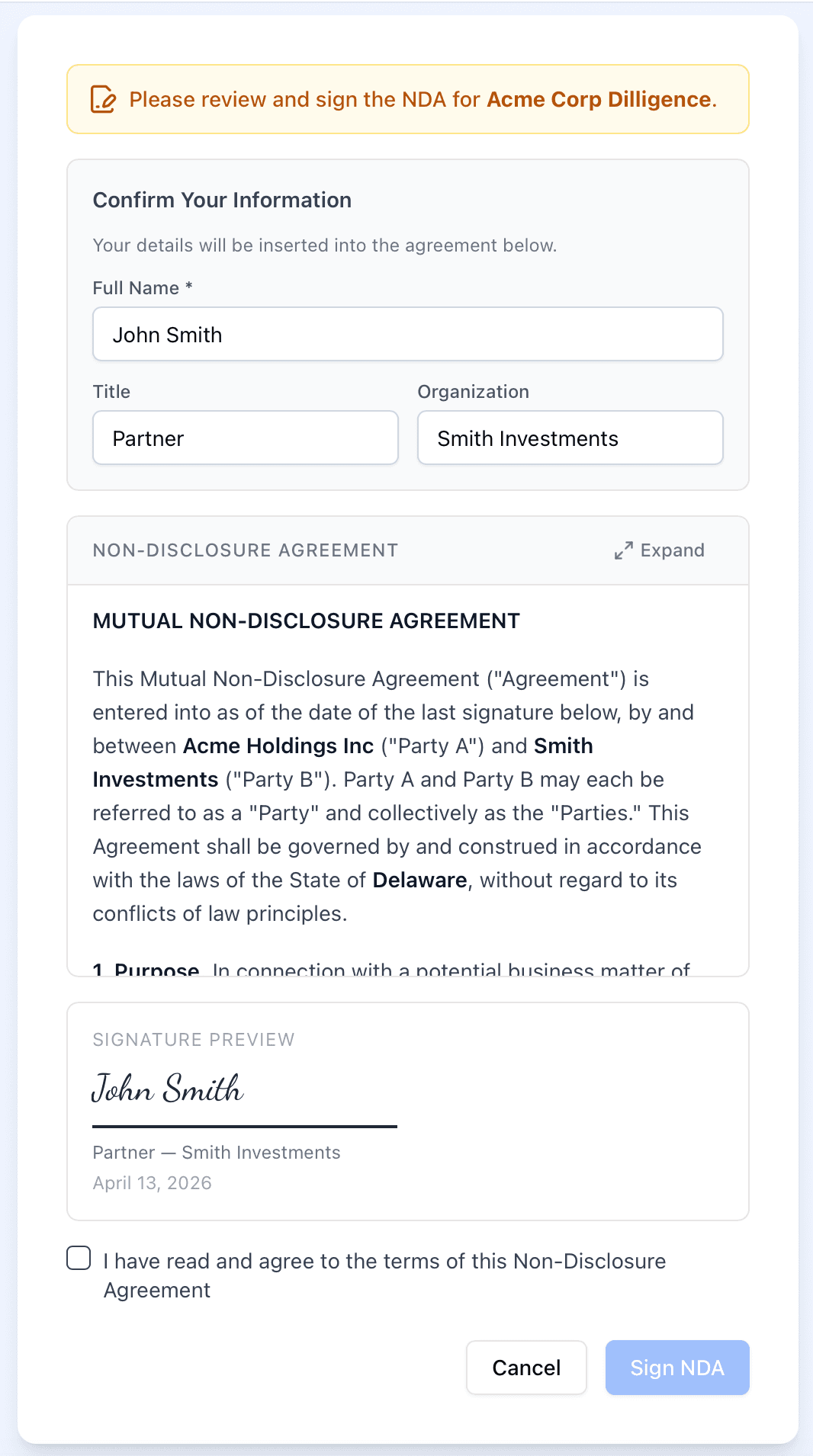
The inline signing flow — confirm your information, review the agreement, and sign with a cursive signature preview.
What the Signer Sees
Instead of the deal workspace, the signer sees a focused signing screen with the following steps:
- NDA notice — A clear message explaining that an NDA is required for this deal, with options to decline (leave the deal) or proceed to sign.
- Confirm your information — The signer enters or confirms their full legal name (required), title (optional), and organization (optional). These fields are pre-populated from the signer’s Vetting Vault profile when available.
- Review the agreement — The full NDA text is displayed inline, with all variables resolved (Party A, Party B, governing state). The signer can expand the agreement to a full-screen modal for easier reading.
- Signature preview — As the signer types their name, a real-time cursive signature preview appears, showing exactly how their name will appear on the signed document.
- Agreement checkbox — The signer must check “I have read and agree to the terms of this Non-Disclosure Agreement” before the Sign NDA button becomes active.
- Sign — Clicking “Sign NDA” records the signature and immediately grants access to the deal.
Typed Signature
Vetting Vault uses a typed signature approach. The signer types their full legal name, which is rendered in a cursive font as a signature preview. This is a legally recognized method of electronic signature. The signed record captures the typed name, the signer’s IP address, user agent, and the exact timestamp.
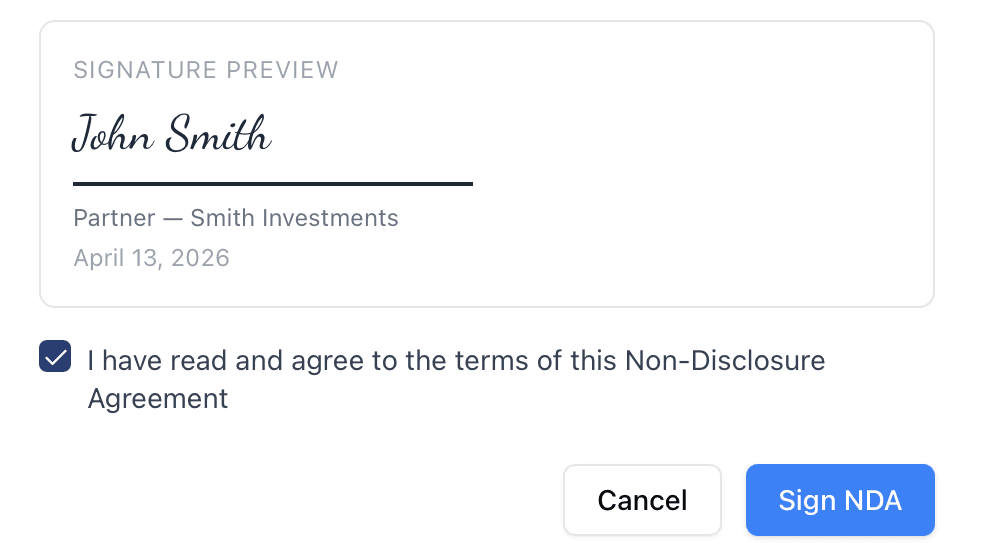
The signature preview renders the signer’s name in cursive with their title, organization, and date.
What Happens After Signing
Once the signer clicks “Sign NDA,” several things happen:
- The signer’s NDA status is updated to “signed” and they gain immediate access to the deal.
- If the signer had a pending invitation, it is automatically accepted.
- A PDF copy of the signed NDA is generated in the background and stored securely.
- Email notifications are sent to both the deal owner and the signer with a link to download the signed PDF.
PDF generation is non-blocking
Managing Signed NDAs
Deal owners and admins can view and manage all NDA signatures for a deal from the NDAs drawer, accessible via the NDAs button in the deal toolbar.

The NDA Signatures drawer shows who has signed, when, and lets you download the signed PDF.
Viewing Signatures
The NDA drawer shows two sections:
- Signed — All members who signed the NDA, showing their name, signing date, title, and a download button for the PDF.
- Bypassed — Members whose NDA requirement was bypassed by an owner or admin, including the bypass date and reason (if provided).
Downloading Signed PDFs
Click the download icon next to any signature to get the signed PDF. The PDF includes:
- The full NDA text with all variables resolved as they appeared at signing time.
- The signature block with the signer’s name, title, organization, and date.
- An electronic signature footer with the exact timestamp and IP address.
Download links are generated on demand with a 5-minute expiry for security. Deal owners, admins, and the signer themselves can download a signed PDF.
Bypassing the NDA Requirement
Sometimes a deal participant has already signed an NDA through an external process (e.g., via DocuSign or a wet-ink signature). In these cases, a deal owner or admin can bypass the NDA requirement for that specific member:
- Open the bypass dialog for the member in question.
- Optionally provide a reason (e.g., “NDA signed externally via DocuSign on 3/15/2026”).
- Click Bypass NDA.
The member immediately gains access to the deal. The bypass is recorded in the audit trail with the bypassing user’s identity, timestamp, and reason.
Use bypass judiciously
Audit Trail
Every NDA interaction is recorded with full metadata:
- Signatures — Signer name, title, organization, timestamp, IP address, and user agent.
- Bypasses — Who bypassed, when, and why.
- NDA text snapshot — The exact HTML of the agreement as it appeared to the signer, with all variables resolved. This ensures you always know exactly what each person agreed to, even if the template is later modified.
- PDF archive — Every signed NDA is stored as a PDF in secure cloud storage.
Best Practices
When to Require NDAs
- M&A transactions — Almost always. Buyers, their counsel, accountants, and consultants should all sign before accessing seller financials and proprietary data.
- Lending and underwriting — Consider requiring NDAs when deal data includes sensitive borrower information beyond what is standard for the loan process.
- Multi-party deals — When multiple bidders or investor groups are involved, NDAs help establish clear confidentiality boundaries for each participant.
- Deals with IP exposure — If the deal room contains trade secrets, proprietary technology, or other intellectual property, an NDA provides an additional layer of legal protection.
Template Management Tips
- Clone, do not edit the system template — Keep the Standard Mutual NDA as a clean reference. Clone it and customize the copy for your firm’s needs.
- Create deal-type-specific templates — If you run different types of deals (M&A, lending, consulting), create a template for each type with appropriate language.
- Set your most-used template as the default — This saves time during deal setup since the default is pre-selected.
- Review with legal counsel — Before using any NDA template in a live deal, have your legal team review the language to confirm it meets your jurisdiction’s requirements and your firm’s standards.
- Use descriptive template names — Names like “One-Way Buyer NDA (Delaware)” or “Mutual NDA — Healthcare Deals” make it easy to pick the right template during deal setup.
Operational Tips
- Set the entity name carefully — The Party A entity name should be the legal entity that owns the confidential information, not a person’s name. Double-check this before enabling the NDA.
- Choose governing law intentionally — The governing state determines which state’s laws apply to the agreement. Typically, this is the state where your entity is organized or where the deal is based.
- Enable NDA before inviting members — To ensure all participants sign the NDA, enable it before sending deal invitations. Members already on the deal when NDA is enabled are grandfathered in and will not be required to sign.
- Use bypass only for externally signed NDAs — Always provide a reason when bypassing so your team has a clear record of the rationale.
Tip