
Deal Chat
Deal Chat is your central communication hub for the entire deal. Instead of scattered email threads and text messages, all deal-related conversations happen in one place with full context, @mentions, and a permanent record.
Overview
Communication breakdowns are one of the biggest reasons deals slow down or fall apart. Critical questions get buried in email chains. Instructions are lost in text messages. Someone makes a decision in a phone call and nobody else on the team hears about it.
Deal Chat solves this by giving every deal a dedicated communication channel where all participants can collaborate in real time. Messages are tied to the deal, visible to the right people, and preserved as a permanent record. When someone new joins the deal, they can scroll back through the full chat history to get up to speed.
Unlike general-purpose messaging tools, Deal Chat is integrated with the rest of Vetting Vault. You can reference specific requests, @mention team members to trigger notifications, and reply to messages to create focused threads — all within the deal workspace.
Permanent record
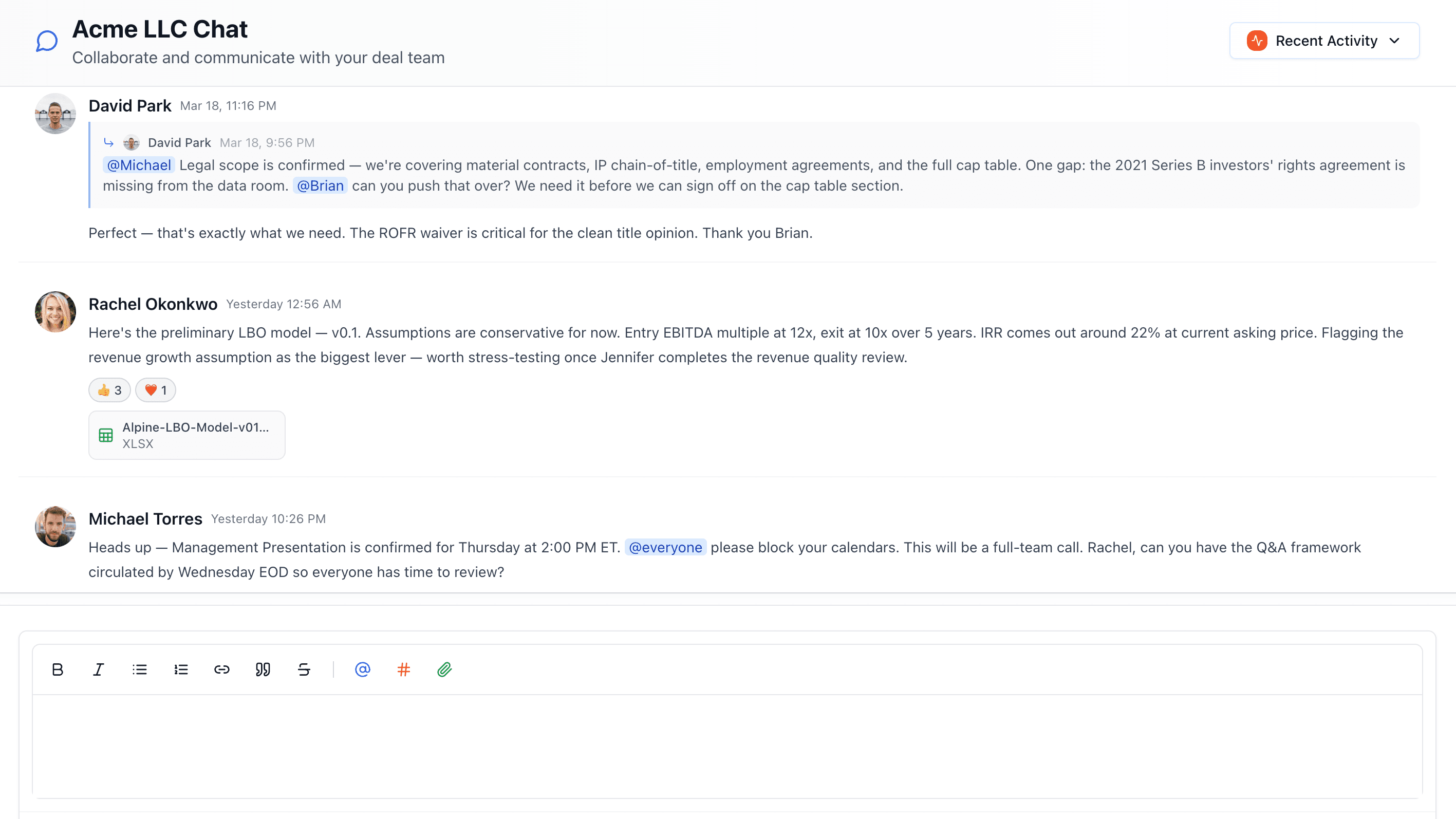
Deal Chat keeps all deal communication in one searchable place with @mentions, file attachments, and reactions.
Sending Messages
Sending a message in Deal Chat is straightforward:
- Open the chat panel — Click the chat icon in the deal workspace to open the Deal Chat panel. It slides open alongside your request list so you can reference both at the same time.
- Type your message — Write your message in the text input at the bottom of the panel. Deal Chat supports rich text formatting including bold, italic, bulleted lists, and code blocks.
- Attach files (optional) — Click the attachment icon or drag a file into the chat to share it inline. Attached files can be previewed directly in the chat without downloading.
- Send — Press Enter or click the send button. Your message appears instantly for all deal participants.
Messages are visible to everyone on the deal. All participants — buyer side, seller side, and advisors — see the same chat stream. This keeps communication transparent and ensures nobody misses important updates.
@Mentions and Notifications
When you need a specific person to see a message or take action, @mention them to send a direct notification.
- Type @ to mention someone — Start typing
@followed by the person’s name. A dropdown shows matching team members. Select the person you want to mention. - Instant notifications — The mentioned person receives a notification both in-app (the notification bell in the top navigation) and via email. The notification includes the message content and a direct link to jump into the conversation.
- Multiple mentions — You can @mention multiple people in a single message. Each person receives their own notification.
- Mention visibility — @mentions are highlighted in the chat so they stand out visually. This makes it easy to scan the chat history and find messages directed at you.
@mention best practices
Referencing Requests
One of the most powerful features of Deal Chat is the ability to link directly to specific requests in your messages. This keeps conversations contextual and eliminates confusion about which item is being discussed.
- Link to a request — Type
#followed by the request name or number to insert a reference. A dropdown shows matching requests from the deal. Select the one you want to reference. - Clickable references — Request references appear as clickable links in the chat. Anyone reading the message can click the reference to jump directly to that request item, complete with its documents, comments, and status.
- Full context — By referencing a request, you give everyone in the conversation immediate access to the relevant documents and history. No need to explain which “tax return” you mean when you can link directly to the specific request item.
For example, instead of writing “Can someone check on the tax returns?” you can write “@Sarah, can you review the documents on #3-Year-Tax-Returns? The buyer flagged a discrepancy in the 2023 filing.” This message is specific, actionable, and linked to all the relevant context.
Replying to Messages
When a conversation gets going, replies help keep discussions organized. Instead of one long stream of messages, you can create focused threads around specific topics.
- Reply to a specific message — Hover over any message and click the reply icon. Your reply is visually connected to the original message, making it clear what you are responding to.
- Threaded conversations — Replies create a thread underneath the original message. This keeps back-and-forth discussions on a specific topic contained and easy to follow.
- Thread notifications — When someone replies to a message you sent or a thread you participated in, you receive a notification. You do not need to monitor the full chat stream to stay on top of conversations you are part of.
- Expand and collapse threads — Threads can be expanded to see the full conversation or collapsed to keep the main chat stream clean. The number of replies is shown so you can see active discussions at a glance.
Chat History and Search
Every message sent in Deal Chat is preserved for the life of the deal. This creates a searchable record of all deal communications that you can reference at any time.
- Full history — Scroll back through the entire chat history from the beginning of the deal. New team members who join mid-deal can read the full communication history to understand context and decisions.
- Search by keyword — Use the search bar at the top of the chat panel to find specific messages. Search works across message content, file names, and request references.
- Filter by participant — Narrow the chat view to messages from a specific person. This is useful when you need to find something a particular team member said or shared.
- Filter by date — Jump to messages from a specific date range. Helpful for reviewing what was discussed during a particular phase of the deal.
- Audit trail — The chat history serves as a communication audit trail for the deal. If there is ever a question about what was communicated, when, and by whom, the answer is in the chat.
Note
Best Practices
Getting the most out of Deal Chat comes down to using it consistently and intentionally. Here are some recommendations:
- Use @mentions for action items — When you need someone to do something, @mention them. This ensures they get notified and the request is documented.
- Reference specific requests — Always link to the request item you are discussing. It takes an extra second and saves everyone the confusion of guessing which item you mean.
- Keep deal communication in chat — Resist the temptation to fall back to email for deal discussions. Every conversation that happens outside the platform is a conversation that is not captured in the deal record.
- Use replies for focused discussions — When responding to a specific topic, reply to the original message rather than posting a new top-level message. This keeps the chat organized as activity increases.
- Use chat for quick questions — Instead of scheduling a call to ask a simple question, post it in chat. The answer gets recorded, and the respondent can reply when it is convenient for them.
- Summarize call outcomes — After phone calls or meetings, post a brief summary of decisions and action items in chat. This ensures the rest of the team is informed and creates a written record of what was agreed upon.
Tip