
External Storage
Connect your existing cloud storage to Vetting Vault and automatically sync deal files to Dropbox, Box, Google Drive, or OneDrive. Files are organized into a clean folder structure that mirrors your deal’s projects and request lists.
Overview
Most deal teams already use cloud storage providers for their day-to-day file management. External Storage integration bridges the gap between Vetting Vault’s deal workspace and your team’s preferred cloud platform. When enabled, files uploaded to Vetting Vault are automatically synced to your connected storage provider, organized in a structured folder hierarchy that matches your deal layout.
This is particularly valuable for teams that need files accessible outside of Vetting Vault — for example, when sharing with parties who use their own document management systems, when integrating with internal workflows that pull from cloud storage, or simply as a secondary backup of all deal documents.
Sync, not link
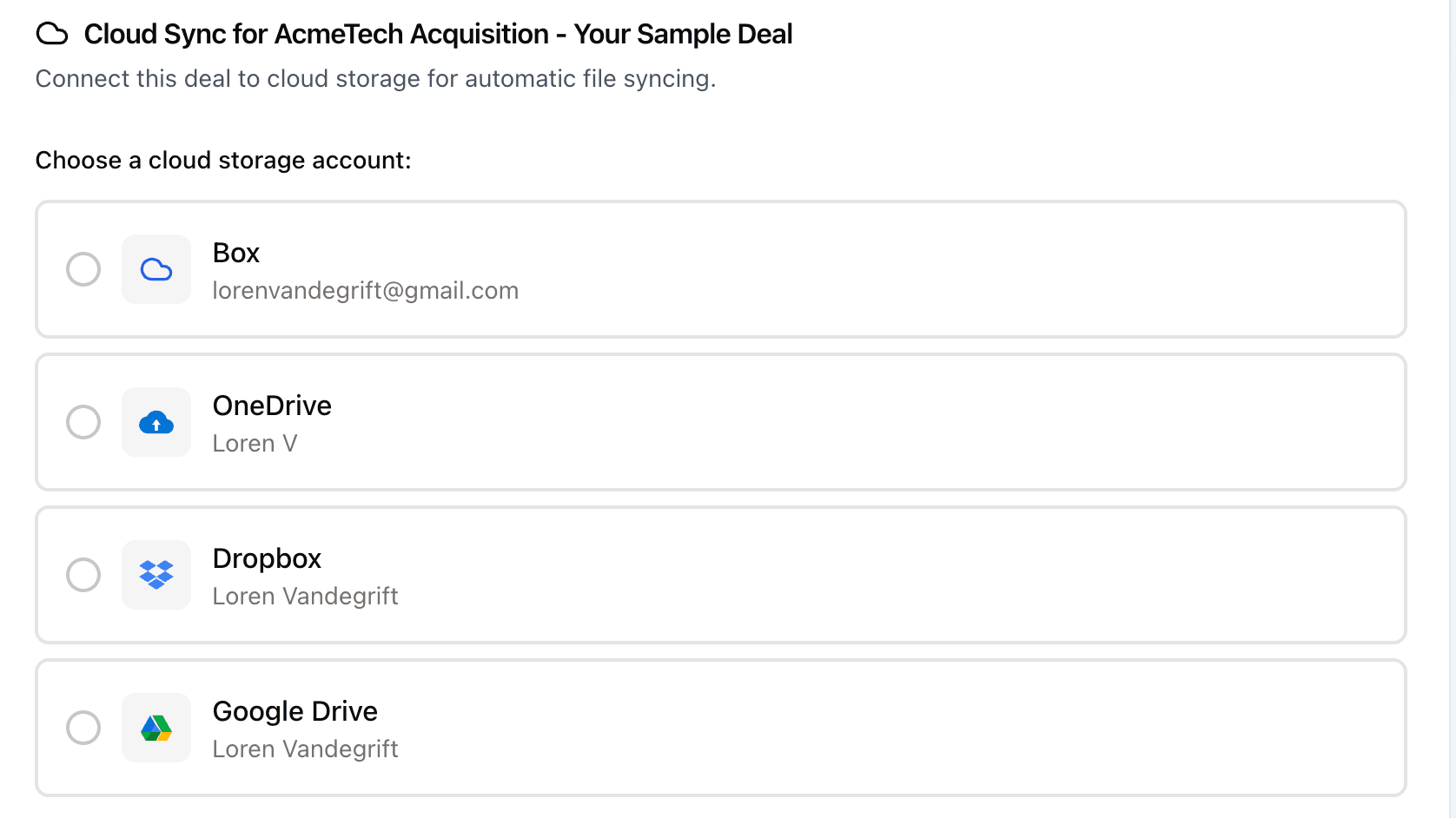
Connect your cloud storage provider and files sync automatically when uploaded to a deal.
Supported Providers
Vetting Vault integrates with the most widely used cloud storage platforms in professional deal environments. Provider availability is as follows:
Dropbox
Dropbox integration is fully available. Once connected, files uploaded to any deal with sync enabled are automatically copied to your Dropbox account in a structured folder hierarchy.
- Works with both personal and Dropbox Business accounts
- Supports all file types
- Files are organized under a
/Vetting Vault/root folder - OAuth 2.0 authentication with automatic token refresh
Box
Box integration is fully available and is a popular choice for teams that require enterprise-grade security and compliance features from their storage provider.
- Works with Box Business and Enterprise plans
- Enterprise-grade security and compliance integration
- Respects Box permission and sharing settings
- OAuth 2.0 authentication with automatic token refresh
Google Drive
Google Drive integration is fully available. Teams using Google Workspace can sync deal files directly to their Google Drive, organized in the same structured folder hierarchy.
- Works with personal and Google Workspace accounts
- Supports all file types
- Files organized under a Vetting Vault root folder
- OAuth 2.0 authentication with automatic token refresh
OneDrive
OneDrive integration is fully available for teams in the Microsoft 365 ecosystem. Sync deal files directly to your OneDrive account with the same automatic behavior as the other providers.
- Works with personal and OneDrive for Business accounts
- Same automatic sync behavior as Dropbox, Box, and Google Drive
- OAuth 2.0 authentication with automatic token refresh
Choosing the right provider
Connecting Your Storage
Storage connections are set up at the user account level. Each user connects their own cloud storage account, and then enables sync on individual deals.
- Navigate to account settings — Click your profile icon in the top-right corner and select “Settings.”
- Click “Connect Storage” — In the Integrations section, you will see the available storage providers. Click the one you want to connect.
- Authorize your account — You will be redirected to your cloud storage provider to sign in and grant Vetting Vault permission to access your files.
- Confirm the connection — Once authorized, you are returned to Vetting Vault. Your connected storage provider now appears in your settings with a “Connected” badge showing your account name.
Authorization and Permissions
Vetting Vault requests the minimum permissions needed to create folders and upload files in your cloud storage. The specific scopes depend on the provider:
- Dropbox — Permission to read and write files and folders within the
/Vetting Vault/directory. - Box — Permission to read, write, and manage files and folders.
- Google Drive — Permission to create and manage files within the Vetting Vault folder.
- OneDrive — Permission to read and write files and folders within the Vetting Vault directory.
Your cloud storage credentials (access tokens) are encrypted at rest and refreshed automatically when they expire. Vetting Vault never stores your cloud storage password.
Per-Deal Storage Configuration
Cloud sync is configured on a per-deal basis. This means you can enable sync for active deals that need external storage while leaving it off for others. Each deal can use a different storage connection if needed.
Selecting a Connection
When configuring sync for a deal, you select which connected storage account to use. If you have multiple cloud storage connections (for example, a personal Dropbox and a company Box account), you choose which one receives the files for that specific deal.
Folder Structure
Files are organized in your cloud storage using a clean, hierarchical structure that mirrors your deal layout:
/Vetting Vault/
  └── Deal Name/
      └── Project Name/
          └── Section Name/
              └── Request Name/
                  ├── document1.pdf
                  ├── document2.xlsx
                  └── ...
This structure is created automatically. Folders are generated on-the-fly as files are synced — you do not need to set up the folder hierarchy manually. Folder names are derived from your deal name, project names, section names, and request titles.
Note
/Vetting Vault/Acme Corp Acquisition. This gives you a clear preview of where to find your files in your cloud storage.Enabling Cloud Sync
To enable sync for a deal:
- Open the deal’s settings — Navigate to the deal and open the Cloud Sync settings panel.
- Select your storage account — Choose from your connected cloud storage accounts.
- Click “Enable Cloud Sync” — This saves the configuration and immediately triggers an initial bulk sync of all existing files in the deal.
After the initial sync completes, all newly uploaded files will be automatically synced to your cloud storage as they arrive.
Sync Behavior
Understanding when and how files are synced helps you work confidently with external storage integration.
Sync on Upload
When cloud sync is enabled for a deal, every file uploaded to that deal is automatically queued for sync. The sync happens in the background — deal participants do not need to take any manual action. The file is first stored securely in Vetting Vault, and then a background job copies it to your connected cloud storage.
Sync jobs are processed through a reliable job queue (powered by Graphile Worker), which means files are synced in order and the system gracefully handles temporary failures without losing track of pending work.
Bulk Sync
There are two scenarios where a bulk sync occurs:
- Initial setup — When you first enable cloud sync for a deal, all existing files in the deal are automatically queued for sync. This ensures your cloud storage mirror starts complete.
- Manual resync — You can trigger a manual resync at any time from the deal’s Cloud Sync settings. This re-queues all files that are not already marked as successfully synced. Use this if you need to recover from errors or if files were added while sync was temporarily disabled.
Tip
What Gets Synced
The following content is synced to your cloud storage:
- Uploaded files — Any file uploaded to a request in the deal.
- Written response PDFs — Auto-generated PDFs from written responses are synced like any other file.
- All file types — PDFs, spreadsheets, documents, images, and any other file type are synced without restriction.
Files that have been soft-deleted in Vetting Vault are excluded from sync. Only active, non-deleted files are copied to your cloud storage.
Sync Status Tracking
Vetting Vault provides detailed visibility into the sync status of every file, so you always know whether your cloud storage mirror is up to date.
File-Level Status
Each file in a synced deal has one of three sync statuses:
- Synced — The file has been successfully copied to your cloud storage. The external file path and the timestamp of the last successful sync are recorded.
- Pending — The file is queued for sync but has not been processed yet. This is the initial state for newly uploaded files and for files waiting in the bulk sync queue.
- Failed — The sync attempt encountered an error. The error message and error type are recorded for troubleshooting. Failed syncs can be retried.
Deal-Level Dashboard
The Cloud Sync settings panel for each deal shows an aggregate status summary:
- Files Synced — The count of successfully synced files out of the total (e.g., “42 of 45”).
- Failed count — The number of files that failed to sync, displayed as a warning so you know if action is needed.
- Last Synced — The timestamp of the most recent successful sync across all files in the deal.
- Storage Location — The root folder path in your cloud storage (e.g.,
Vetting Vault/Acme Corp Acquisition).
Real-Time Progress
During bulk sync operations, Vetting Vault provides real-time progress updates via Server-Sent Events (SSE). The sync progress panel shows:
- A progress indicator showing how many files have been processed
- The current file being synced, with its name and status
- A running count of successes and failures
- Automatic reconnection if the connection is interrupted
If the real-time connection drops, the system falls back to periodic polling to keep the status display current. You do not need to refresh the page to see updated sync status.
Error Recovery and Retry
File sync errors are classified into specific types so you can understand what went wrong and how to fix it.
Error Types
When a sync fails, the error is categorized into one of the following types:
- Auth Expired — The cloud storage access token has expired or been revoked. Re-authorize your connection in account settings.
- Permission Denied — Vetting Vault does not have permission to write to the target folder. Check your cloud storage sharing and permission settings.
- Rate Limited — The cloud provider is temporarily rejecting requests due to rate limits. This is automatically retryable — the system will try again after a delay.
- Network Error — A temporary network issue prevented the upload. This is automatically retryable.
- Storage Full — Your cloud storage account has insufficient space. Free up space or upgrade your cloud storage plan.
- File Not Found — The source file could not be found in Vetting Vault’s storage. This typically means the file was deleted after being queued for sync.
- Provider Error — An unexpected error from the cloud storage provider. Check the error message for details.
Retrying Failed Syncs
To retry failed syncs, use the “Resync All Files” button in the deal’s Cloud Sync settings. This re-queues all files that do not have a successful sync record, including previously failed files. For transient errors (rate limiting, network issues), the retry will typically succeed without any manual intervention beyond clicking the button.
For persistent errors like auth expiration or permission issues, resolve the underlying problem first (re-authorize the connection or fix permissions), then trigger a resync.
Warning
Direct Links to Cloud Files
Once a file has been successfully synced, Vetting Vault records the external file path and external file ID in your cloud storage. This information is stored so that future features can provide direct links to open files in your cloud provider’s native interface.
In the current implementation, synced files can be located in your cloud storage by navigating to the folder path shown in the deal’s sync settings. The folder structure matches your deal layout, so finding a specific file is straightforward: navigate to the deal folder, then the project folder, then the section and request folders.
Connection Health and Token Management
Cloud storage connections use OAuth 2.0 tokens that expire periodically. Vetting Vault manages token lifecycle automatically to minimize disruption.
Automatic Token Refresh
Access tokens are checked before every sync operation. If a token is within 10 minutes of expiration, Vetting Vault automatically refreshes it using the stored refresh token. This happens transparently — no action is required from you.
To prevent race conditions when multiple files are syncing simultaneously, token refresh uses a locking mechanism. If one sync job is already refreshing the token, other jobs wait for the refresh to complete rather than attempting redundant refreshes. This ensures reliable token management even during large bulk sync operations.
Re-Authorization
In some cases, automatic token refresh is not possible and manual re-authorization is needed:
- Password change — If you change your cloud storage password, the refresh token may be invalidated.
- Permission revocation — If your IT team revokes third-party app access, the connection will stop working.
- Token expiration — Some providers have absolute token expiration periods (typically 60–90 days for refresh tokens).
When re-authorization is needed, Vetting Vault will show a warning in your connection settings. Disconnect the provider and reconnect it to re-authorize. Existing sync records are preserved — only the authentication credentials are updated.
Managing Connected Storage
You can manage your external storage connections at any time from your account settings:
- View connected accounts — See all your connected storage providers with account names and connection status.
- Disconnect a provider — If you no longer want a storage provider connected, click “Disconnect” in your settings. Files already synced to your cloud storage remain there — only future syncing stops.
- Turn off sync for a deal — In the deal’s Cloud Sync settings, you can disable sync without disconnecting your storage account entirely. This pauses syncing for that specific deal while keeping sync active on other deals.
- Switch providers — If you change cloud storage providers, connect the new provider in your account settings, then update the deal’s sync configuration to use the new connection. The system will sync all files to the new provider without affecting files already stored in the previous provider.
Tip