Deal Management
The deal dashboard is your command center for every transaction. From here you can see all active deals, monitor their progress, adjust settings, and keep your entire pipeline organized.
Overview
Every transaction in Vetting Vault lives inside a deal. A deal is the top-level workspace that contains your request list, uploaded documents, chat threads, team members, and all related activity. Whether you are running a single acquisition or managing a portfolio of lending engagements, the deal dashboard gives you a clear picture of where things stand at any moment.
Deals move through a simple lifecycle: they are created, actively worked on by your team and collaborators, and eventually closed or archived when the transaction is complete. Along the way, Vetting Vault tracks every action so you always have a full audit trail.
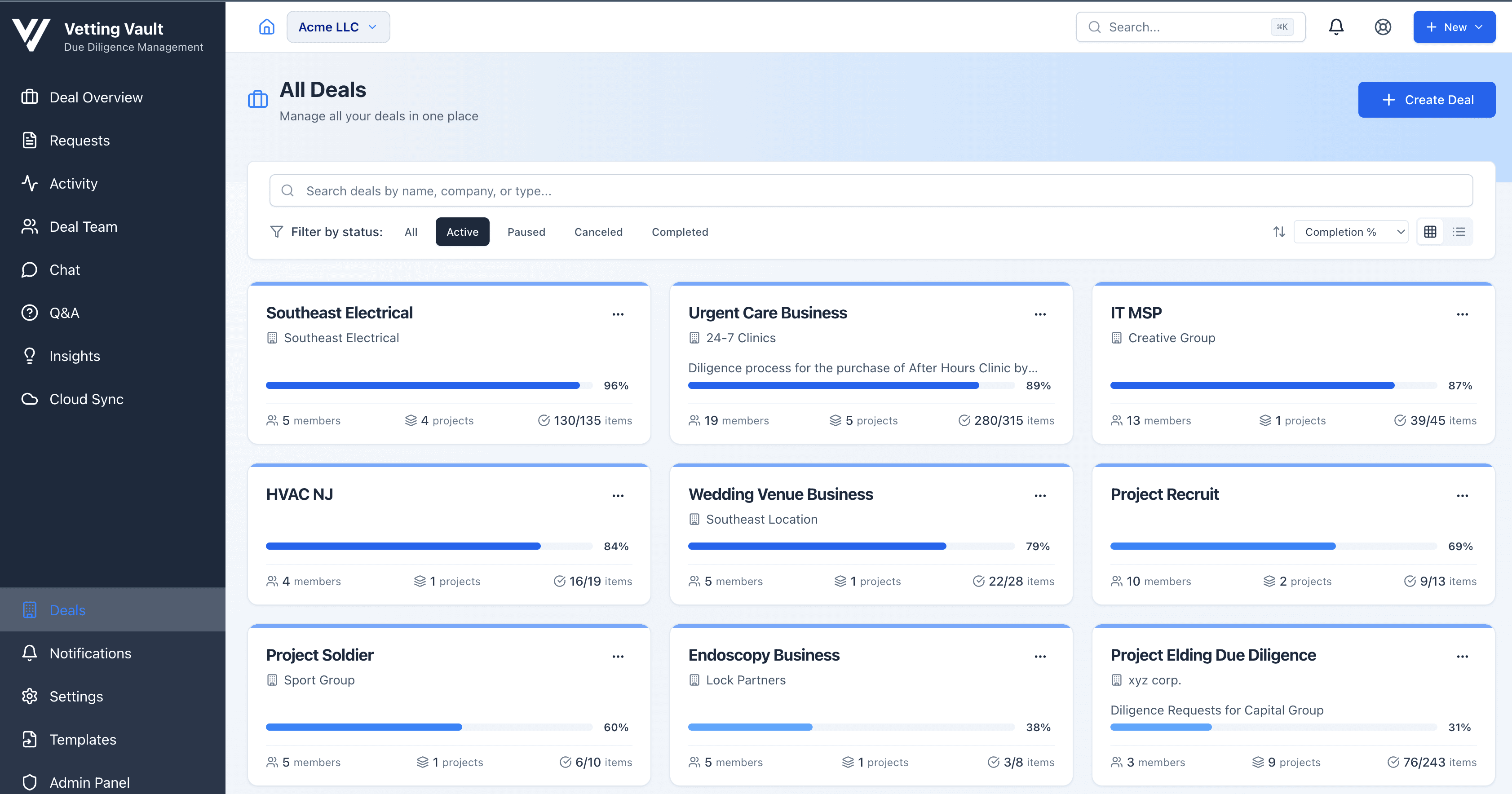
The deal dashboard gives you a bird’s-eye view of every active deal, with progress bars, team counts, and recent activity at a glance.
The Deal Dashboard
When you log in to Vetting Vault, the first thing you see is the deal dashboard. It lists every deal you have access to, with key information visible at a glance.
- Status indicators — Each deal shows whether it is active, closed, or archived so you can quickly focus on the work that needs attention.
- Progress summary — A progress bar on each deal card shows how many requests have been fulfilled versus how many are outstanding.
- Quick access to recent deals — Deals you have opened recently appear at the top, so you can jump back in without scrolling.
- Search and filter — Use the search bar to find deals by name, or filter by status, date range, or team members involved.
Tip
Deal Settings
Every deal has a settings panel where you can configure the details that matter to your team. Open it by clicking the gear icon inside any deal.
General Settings
The general settings tab lets you manage the basic identity of your deal.
- Deal name — Give the deal a clear, descriptive name that everyone on the team will recognize. You can rename a deal at any time.
- Description — Add a short summary of the transaction. This is visible on the dashboard and helps collaborators understand the context at a glance.
- Transaction type — Choose the type that best describes your deal, such as buying a business, providing a loan, or evaluating a partner. This helps keep your dashboard organized.
Timeline & Deadlines
Keeping a deal on schedule is critical. In the timeline settings you can set:
- Target close date — The expected completion date for the entire deal. This date appears on the dashboard and in notifications to keep everyone aligned.
- Milestone dates — Break the deal into phases (for example, initial review, deep diligence, final approval) with their own target dates.
- Deadline reminders — Automatic reminders are sent to deal participants as deadlines approach, so nothing falls through the cracks.
Access & Permissions
Control who can see and do what inside a deal. Vetting Vault supports tiered access so you can protect sensitive information while keeping the right people in the loop.
- Deal Admin — Full control over the deal, including settings, member management, and the ability to archive or delete.
- Deal Contributor — Can upload documents, add comments, participate in chat, and complete requests. Cannot change deal settings or remove other members.
- View Only — Can browse the deal and download files but cannot make changes. Useful for oversight roles such as compliance reviewers.
Confidentiality boundaries
Monitoring Deal Progress
One of the biggest advantages of Vetting Vault is real-time visibility into deal progress. No more emailing around to ask "where are we?" — the answer is always on screen.
- Progress bars — A visual progress bar at the top of each deal shows the overall completion percentage. It updates automatically as requests move through their statuses.
- Request status breakdown — See exactly how many requests are pending, submitted, under review, approved, or flagged for discussion. Drill into any status to see the specific items.
- Activity feed — A chronological log of every action taken in the deal: file uploads, status changes, comments, and chat messages. Use this to stay current without opening every request individually.
- Assignee progress — Filter by team member to see who has completed their assigned items and who might need a follow-up.
Tip
Archiving and Closing Deals
When a transaction is complete, you can close and archive the deal to keep your dashboard focused on active work.
- Close the deal — Mark a deal as closed to signal to all participants that the transaction is finished. Closed deals remain accessible but are separated from your active list.
- Archive for record-keeping — Archived deals are read-only. No one can upload new files, change statuses, or add comments. All existing data remains fully accessible for reference or audit purposes.
- Data retention — Archived deals and their documents are retained according to your organization’s retention policy. You can download a complete copy of the deal at any time.
Archiving is reversible
Duplicating a Deal
When you run similar transactions repeatedly, duplicating a deal saves significant setup time. Instead of building a new request list from scratch, you can clone the structure of a previous deal and start from a proven foundation.
- What gets copied — The request list structure (categories and items), any attached templates, and deal settings. Documents, comments, and chat history from the original deal are not copied.
- How to duplicate — Open the deal you want to clone, go to settings, and select Duplicate Deal. Give the new deal a name and it will be created with the same request structure.
- Best for — Repeat transaction types such as SBA loans, platform acquisitions, or recurring underwriting processes where the required documents are largely the same.
Tip