
Request Lists
The request list is the heart of Vetting Vault. It is the single place where every document request, status update, and uploaded file lives — eliminating the chaos of spreadsheets, email threads, and disconnected data rooms.
Overview
In a traditional deal workflow, someone maintains a spreadsheet of required documents while a separate data room stores the actual files. The two are never truly connected. Team members waste hours cross-referencing rows in Excel with folders in a shared drive, wondering which version is current, and emailing around to ask "has this been uploaded yet?"
Vetting Vault removes that friction entirely. Your request list is your data room. Every request item can hold documents, comments, status updates, and assignments — all in one place with live progress tracking. When someone uploads a file, the request updates automatically. When a status changes, everyone sees it in real time.
The fundamental innovation
The Request List = Data Room Concept
To understand why this matters, consider the two approaches side by side.
Traditional approach:
- A spreadsheet tracks what documents are needed (often emailed around, with multiple versions floating in inboxes).
- A separate data room (or shared drive) stores the files, organized by folders.
- Someone manually updates the spreadsheet when a file is uploaded.
- Nobody is sure which spreadsheet version is current, which files map to which requests, or whether the latest version was uploaded.
Vetting Vault approach:
- The request list and the data room are the same thing.
- Each request item holds its own documents, comments, status, and assignments.
- When a file is uploaded to a request, the status and progress update automatically.
- Everyone — buyer side, seller side, and advisors — sees the same real-time view.
The result: no more "which spreadsheet is current?" and no more hunting through folders to find the right file. Everything is connected, up to date, and visible to the people who need it.
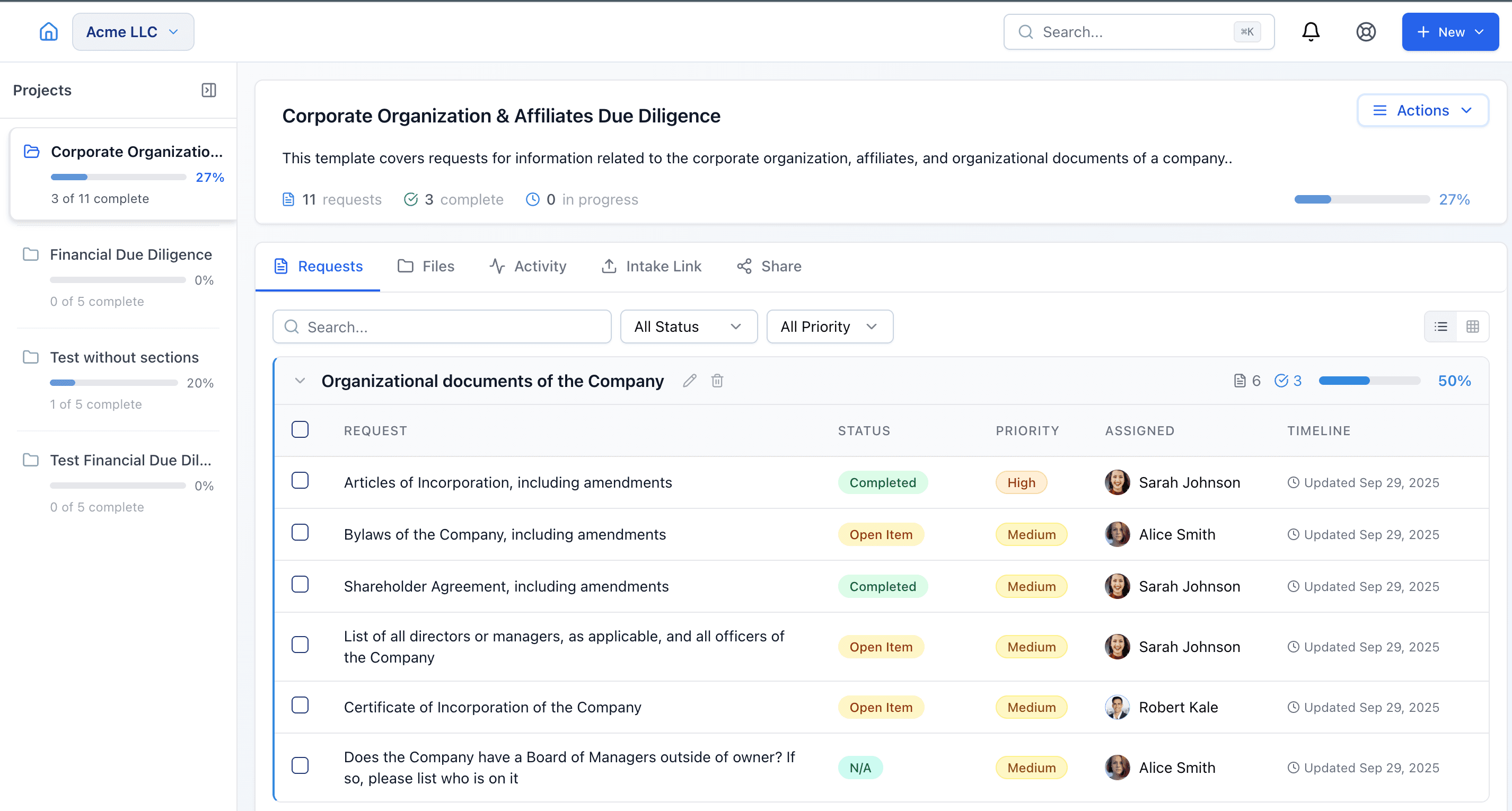
Your request list is your data room — every document tied to its request with live status tracking.
Creating and Organizing Requests
A well-organized request list makes the entire deal run more smoothly. Vetting Vault gives you flexible tools to structure your requests however your deal requires.
- Add categories — Group related requests under categories such as Financial, Legal, Tax, HR, Operations, or any custom grouping that fits your deal. Categories act as collapsible sections that keep the list easy to navigate.
- Add request items — Within each category, add individual request items. Each item represents a specific document or piece of information you need (for example, "Last 3 years of audited financial statements" or "List of all pending litigation").
- Drag and drop to reorder — Rearrange items and categories by dragging them. Put the most urgent or important requests at the top.
- Bulk actions — Select multiple requests to change their status, assign them, move them to a different category, or delete them in one action.
Tip
Request Statuses
Every request item has a status that tells the team exactly where it stands. Statuses update the deal’s progress bar automatically, so you always have an accurate picture of how the deal is progressing.
Open Item
The default status for newly created requests. No files have been uploaded and no work has begun. This status makes it easy to see what still needs attention.
In Progress
The assigned team member has begun gathering or preparing the requested document. Use this status to signal that work is underway so others know not to duplicate the effort.
Submitted
The person fulfilling the request has uploaded the required documents and manually set the status to “Submitted” to signal that everything is ready for review. This is an intentional step — only the person providing the documents knows when they are done uploading, so they mark it submitted when they are ready.
Completed
The submitted document has been reviewed and accepted. Completed items count toward the deal’s completion percentage. Once marked as completed, the request is considered done.
N/A
The request does not apply to this particular deal. Mark items as N/A when they are part of a template but are not relevant to the current transaction. N/A items are excluded from the deal’s progress calculations.
Discuss
The document or request needs further conversation before it can move forward. This might mean the submitted file does not match what was expected, additional clarification is needed, or there is a question the team needs to resolve. Items marked “Discuss” are highlighted so they are easy to spot in the list.
Suggested Workflow
Every deal team finds their own rhythm, but here is a common workflow that works well as a starting point:
- Provider fulfills the request and marks as Submitted — The person responsible for a request uploads the required documents and changes the status to “Submitted” to signal that it’s ready for review. If the request does not apply to the deal, they mark it “N/A” and leave a comment explaining why (for example, “We don’t have any pending litigation” or “Not applicable — this is an asset sale, not a stock sale”).
- Reviewer checks the submission — The requesting party reviews the uploaded documents. If the request has been satisfactorily fulfilled, they mark it “Completed.”
- If something needs attention — If the uploaded documents do not match what was expected or the request needs clarification, the reviewer either leaves a comment explaining what’s needed or moves the status to “Discuss” to flag it for a conversation.
- Resolve and complete — Once the discussion is resolved and the request is properly fulfilled, the reviewer marks it “Completed.”
This simple flow — Submitted → Completed (or Submitted → Discuss → Completed) — keeps everyone clear on what’s been provided, what’s been accepted, and what still needs work. Requests that don’t apply get marked “N/A” early so they’re out of the way. The progress bar updates automatically as items move through these stages.
Adapt to your process
Assigning Requests
Clear ownership is one of the fastest ways to keep a deal moving. When every request has a named owner, there is no ambiguity about who is responsible for what.
- Assign to team members — Click on any request and select an assignee from the list of deal participants. You can assign requests to anyone who has been invited to the deal, regardless of which side of the transaction they are on.
- Set due dates — Give each request a deadline. Due dates appear on the request item and in the assignee’s notification feed. Overdue items are visually flagged in the request list.
- Automatic notifications — When you assign a request, the assignee receives a notification (email and in-app) with the request details and due date. Follow-up reminders are sent as the deadline approaches.
- Filter by assignee — Use the filter controls to view only the requests assigned to a specific person. This is especially helpful for team leads who need to check on individual progress.
Tip
Fulfilling Requests
When you open a request, you will see four tabs at the bottom for different ways to fulfill it. Each tab serves a different purpose depending on the situation.
Upload
The most common way to fulfill a request. Upload files directly from your computer.
- Drag and drop — Drag files from your desktop directly onto the upload area. The upload begins immediately.
- Click to browse — Click the upload area to open a file browser and select one or more files.
- Multiple files per request — Some requests require more than one document. Upload as many files as needed.
- Version history — If you upload a newer version of a file, the previous version is preserved. You can view or download any past version at any time.
- Inline preview — After uploading, click on a file to preview it directly in the browser. PDFs, images, Word documents, and spreadsheets can all be previewed without downloading.
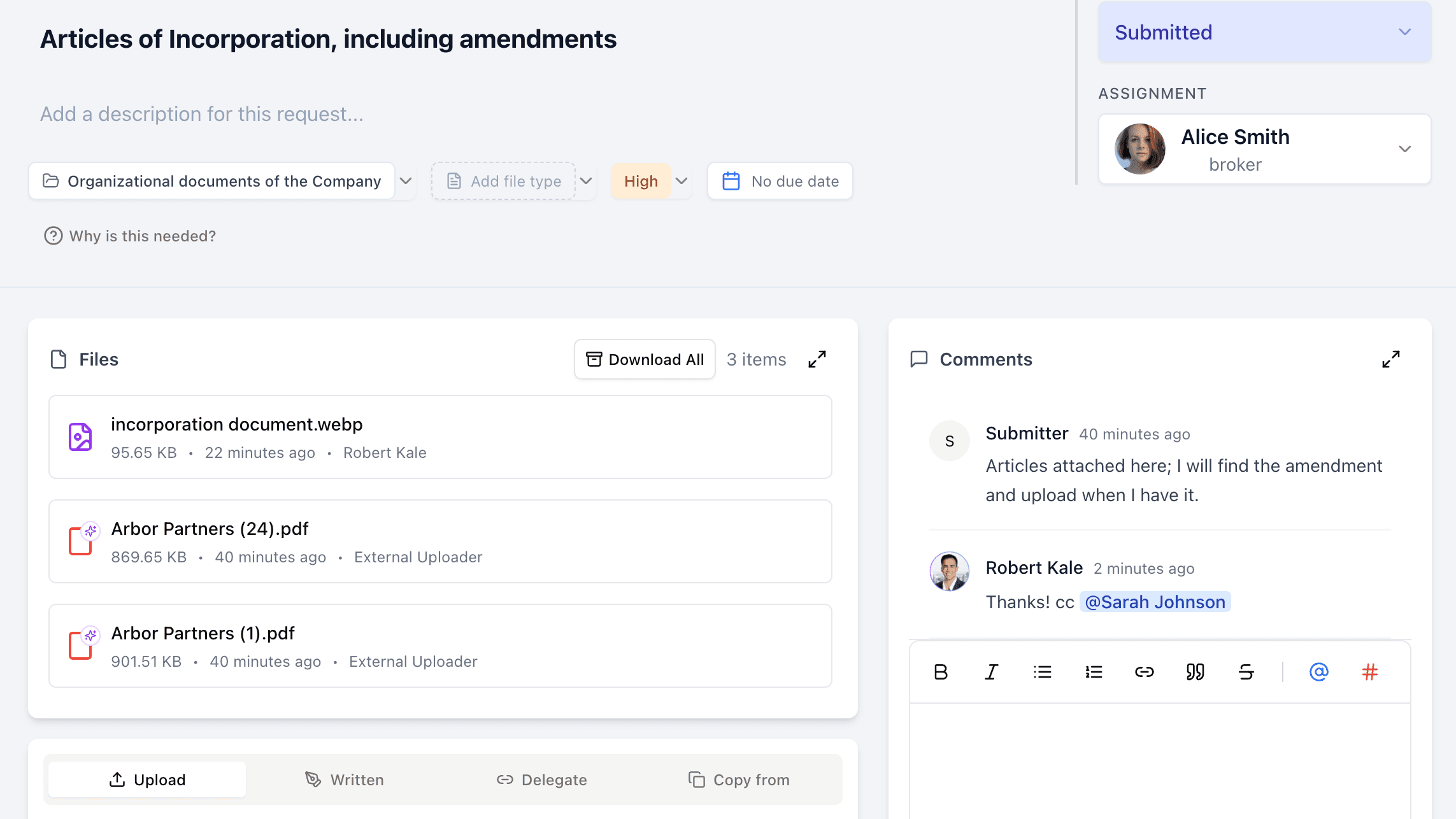
Click any request to see its uploaded files, version history, comments, and assignment details — all in one place.
Written
When a request calls for a written explanation rather than a file upload, use the Written tab to create a rich text response directly within Vetting Vault. A PDF is automatically generated from your response and attached to the request — so the requesting party gets a clean, downloadable document without you needing to create one separately.
When to use Written vs Upload
Delegate
Delegate generates a secure upload link that you can send to someone outside the deal. The recipient clicks the link and sees only the request title, description, and an upload area — nothing else about the deal. They upload their files and you receive them directly on the request.
This is useful when the person who has the document is not a deal participant — for example, asking a CPA to upload tax returns, or having an insurance broker send certificates. They do not need a Vetting Vault account and they see nothing about the deal itself.
One request, one link
Copy From
Copy From lets you pull files and comments from another request anywhere in the deal. This is useful when the same document is needed in multiple places — for example, a set of financial statements that appears in both a Financial Due Diligence project and a Lender Underwriting project.
Select the source request, and the files and comments are copied over. The originals remain on the source request — this creates a copy, not a move.
Comments on Requests
Every request item has its own comment thread. This keeps discussions in context instead of burying them in email chains or Slack messages.
- Add clarifying comments — If a request is unclear, ask a question directly on that item. The context is right there for everyone to see.
- @mention team members — Tag someone in a comment to send them a notification and draw their attention to the discussion.
- Threaded discussions — Reply to specific comments to keep conversations organized. Each request can have multiple discussion threads without becoming cluttered.
- Attached to the request — Comments stay with the request permanently, creating a clear record of decisions and clarifications that anyone can review later.
Tip
Bulk Actions
When you’re managing a deal with dozens or hundreds of requests, updating them one at a time is not practical. Bulk actions let you select multiple requests and apply changes to all of them at once — saving significant time during deal setup, ongoing management, and end-of-phase transitions.
Selecting Requests
Each request row has a checkbox on its left edge. Click it to add that request to your selection. You can also use the header checkbox at the top of each category to select or deselect every request in that section with a single click. Selections work across categories — select an entire “Tax” section, then add a few individual items from “Operations.”
As soon as you select one or more requests, a sticky toolbar appears at the top of the list showing the selection count and all available operations. The toolbar stays visible as you scroll through long request lists.
Available Bulk Operations
- Bulk Status Change — Update all selected requests to a single status (Open Item, In Progress, Submitted, Completed, N/A, or Discuss). Status changes update the deal’s progress bar in real time.
- Bulk Priority Change — Set the priority level (Urgent, High, Medium, or Low) for all selected requests. Useful when deal timelines shift and you need to signal urgency.
- Bulk Assignment — Assign all selected requests to a team member. Works across all roles — buyer-side, seller-side, or advisors. Each assignee receives a notification.
- Bulk Move — Relocate selected requests to a different section or project. A project selector appears when the deal has multiple projects.
- Bulk Delete — Permanently remove selected requests and their attached files. A confirmation prompt appears before proceeding.
Fast deal setup
Warning
Importing Request Lists
You do not have to start from scratch. Vetting Vault can import your existing request lists so you can be up and running in minutes.
- AI-powered import from Excel or CSV — Upload a spreadsheet and Vetting Vault’s AI will read the structure, identify categories and items, and create the request list automatically. It handles a wide variety of spreadsheet formats without requiring a specific template.
- Paste from a spreadsheet — Copy rows from Excel or Google Sheets and paste them directly into Vetting Vault. The system parses the data and creates request items from each row.
- Standard templates — Choose from built-in templates for common transaction types. Templates include typical request items organized into standard categories, giving you a solid starting point that you can customize.
- Learn from past deals — Over time, Vetting Vault helps you improve your templates based on what actually gets requested and approved in your deals. Your process gets smarter with every transaction.
Note