
Q&A System
The Q&A system provides a structured way to handle questions that come up during due diligence. Instead of questions getting lost in email threads, they are tracked, assigned, and resolved in one place with a complete audit trail.
Overview
Questions are inevitable in any deal. A buyer reviewing financial statements might need clarification on a revenue recognition policy. A lender might want more detail on a lease obligation. In a traditional workflow, these questions get asked over email, buried in long threads, and sometimes forgotten entirely. Critical follow-ups fall through the cracks and slow the deal down.
The Q&A system in Vetting Vault gives every question a structured home. Questions are categorized, prioritized, and tracked through to resolution. Everyone on the deal can see the status of open questions, and the complete history is preserved for reference. Answers can include rich text formatting, @mentions to notify specific team members, and #references to link directly to related request items.
Complete audit trail
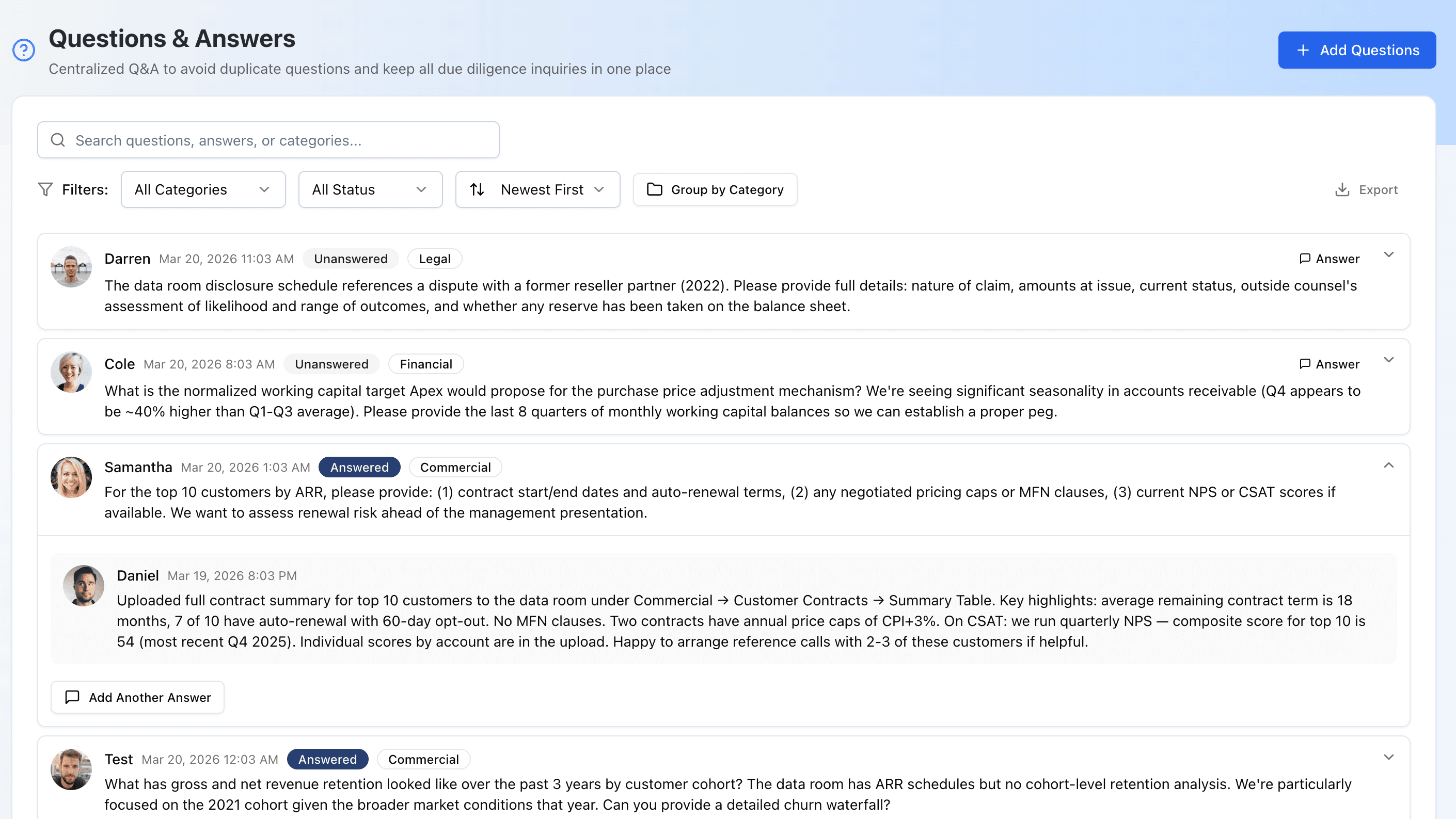
The Q&A system centralizes all due diligence questions with categories, priority levels, and answer versioning.
Two Sources of Questions
Vetting Vault supports two distinct ways to ask and track questions within a deal. Both feed into a single unified Q&A view, giving you a complete picture regardless of where the question originated.
Ad-Hoc Deal Questions
Ad-hoc questions are standalone questions asked directly in the Q&A section of a deal. These are the most common type — a deal participant has a question that is not tied to a specific request item, or that spans multiple areas of the deal.
- Asked from the deal’s Q&A tab using the “Ask Question” button
- Can be categorized (Financial, Legal, Tax, Operations, etc.)
- Can be assigned a priority level (Urgent, High, Medium, Low)
- Support bulk creation — paste multiple questions at once, one per line
- Visible to all deal participants immediately
Question-Type Requests
In addition to document-upload requests, Vetting Vault supports question-type requests within your request lists (projects). When you create a request item, you can set its type to “Question” instead of “Document.” This tells the respondent that you need a written answer rather than a file upload.
- Created within a project’s request list alongside document requests
- Respondents answer with a Written Response (rich text that auto-generates a PDF)
- The question lives in the context of the request list — grouped with related items in the same section
- Progress is tracked the same way as document requests — it counts toward project completion
Tip
The Unified Q&A View
The deal’s Q&A tab aggregates questions from both sources — ad-hoc deal questions and question-type requests from all projects — into a single view. This gives every deal participant one place to see all outstanding questions, regardless of where the question was originally asked.
Each question in the unified view shows its source context: ad-hoc questions display their category, while project-sourced questions show which project and section they belong to. This makes it easy to understand the context of each question without navigating away from the Q&A view.
Source Filtering
When working on a deal with many questions, you can filter the Q&A list by source to focus on what matters most:
- All — Shows every question across the deal, from both ad-hoc questions and project request lists. This is the default view.
- Ad-Hoc — Shows only standalone questions asked directly in the Q&A section. Useful when you want to focus on general deal questions without the noise of request-specific items.
- From Projects — Shows only question-type requests from your project request lists. Useful during structured review sessions where you are working through the formal due diligence checklist.
Source filters can be combined with status and category filters for precise control. For example, you can view only unanswered ad-hoc questions in the Financial category.
Submitting a Question
To submit a new ad-hoc question:
- Open the Q&A tab — Navigate to the deal and click the Q&A section in the sidebar.
- Click “Ask Question” — This opens the question creation form.
- Select a category — Choose from standard categories (Financial, Legal, Tax, Operations, HR, Insurance, IT, Environmental) or leave uncategorized.
- Set the priority (optional) — Mark urgent questions so respondents know what to address first.
- Write your question — Be specific about what you need. Include relevant details like time periods, document names, or section references so the respondent can answer accurately the first time.
- Submit — Your question appears in the Q&A list with a “Pending” status. Deal participants are notified.
Bulk question creation
Answering Questions
The answering workflow in Vetting Vault supports collaborative, multi-party responses with rich formatting:
- Expand the question — Click any question in the Q&A list to expand it and see existing answers.
- Review the context — Read the full question text, check the category, and review any existing answers from other team members.
- Click “Add Answer” — This opens the rich text editor directly below the question.
- Write your answer — Use the TipTap editor with support for bold, italic, lists, headings, blockquotes, and links. Use @mentions to tag specific people and #references to link to request items.
- Post your answer — The answer is added to the question thread. The question status changes to “Answered” and relevant participants are notified.
Multiple people can answer the same question. Each answer appears in chronological order with the author’s name and avatar, creating a clear thread of responses. This is valuable when different team members need to contribute their expertise — for example, a CFO answering the financial aspect while legal counsel addresses the regulatory angle.
@Mentions and #References
The Q&A rich text editor supports two types of inline references that add context and accountability to your answers:
- @Mentions — Type
@followed by a name to mention a deal participant. A dropdown appears showing matching users. When you mention someone, they receive a notification directing them to the specific question or answer. This is the fastest way to pull someone into a conversation or assign follow-up responsibility. - #File Request References — Type
#to reference a specific request item from the deal. A dropdown shows matching request titles. The reference appears as a clickable link — readers can click it to jump directly to the related request and its documents. This creates a direct connection between Q&A discussions and the underlying deal materials.
Mentions trigger notifications
Written Responses and PDF Generation
For question-type requests in your project request lists, respondents provide answers using the Written Response feature. This is a structured alternative to file uploads that is purpose-built for answering questions with detailed, formatted text.
How Written Responses Work
- Open the question-type request — Navigate to the request in the project and click to view its details.
- Click “Create Written Response” — This opens a full-featured document editor.
- Add a title — Give the response a descriptive title (e.g., “Financial Statements Overview” or “Legal Entity Structure”).
- Write the response — Use the rich text editor with support for headings, bold, italic, lists, blockquotes, and links. Structure the response clearly for easy review.
- Save — The response is saved and a PDF is automatically generated from the content.
The auto-generated PDF includes the response title, author name, creation date, and the name of the request it responds to. The PDF preserves all formatting — headings, bold text, bullet lists, blockquotes, and links (rendered as “text (URL)” format). This PDF is automatically attached to the request as a downloadable file, so it appears alongside any other uploaded documents and is included in bulk ZIP downloads.
Tip
Editing and Versioning
Only the original author of a written response can edit it. When a response is updated, the PDF is automatically regenerated to reflect the latest content. The previous version is replaced, ensuring that anyone downloading the file always gets the current answer.
For ad-hoc deal question answers, Vetting Vault maintains a complete edit history. Every time an answer is modified, the previous version is saved with a version number, the editor’s identity, and a timestamp. This versioning provides a full audit trail of how answers evolved over the course of the deal.
Question Statuses
Each question moves through a defined set of statuses that make it easy to see where things stand at a glance.
Pending (Unanswered)
The question has been submitted but no response has been provided yet. Pending questions are visible to all deal participants and appear prominently in the Q&A list so the team knows what still needs attention. The count of pending questions is visible from the deal overview, making it easy to track overall Q&A progress.
Answered
At least one response has been provided. The questioner should review the answer and, if satisfied, archive the question. If the answer is incomplete or raises additional questions, additional answers can be posted to the same thread. Answered questions remain visible so others on the deal can benefit from the information.
Archived
The question has been resolved and archived. Archived questions remain searchable and accessible for future reference. They are hidden from the default Q&A view to keep the active list focused on items that still need attention. You can always view archived questions by changing the status filter.
Note
Priority Levels
Questions can be assigned one of four priority levels to help the team focus on what matters most:
- Urgent — Blocking the deal or time-sensitive. These should be addressed immediately.
- High — Important but not blocking. Should be addressed within 24 hours.
- Medium — Standard priority. The default for most questions.
- Low — Nice-to-have clarifications that can wait until higher-priority items are resolved.
Priority is displayed as a visual indicator on each question card, making it easy to scan the Q&A list and identify what needs attention first.
Organizing Q&A
As a deal progresses, the number of questions can grow quickly. Vetting Vault provides several tools to keep your Q&A organized and manageable.
Grouping by Category
Toggle the “Group by Category” option to organize questions into collapsible sections by their category (Financial, Legal, Tax, etc.). Each category section shows its question count and can be expanded or collapsed independently. This is particularly useful during review meetings when you want to work through questions one area at a time.
Searching Q&A
Use the search bar in the Q&A panel to find questions and answers by keyword. Search looks through both question text and answer text, so you can find information even if you only remember part of an answer. This is especially useful on deals with hundreds of questions where scrolling through the full list would be impractical.
Combine search with filters for maximum precision. For example, search for “lease” within the Legal category to find all lease-related legal questions.
Exporting Q&A
The full Q&A log can be exported for offline review, compliance records, or sharing with parties who do not have platform access:
- PDF export — Generates a formatted PDF document with all questions, answers, statuses, categories, and timestamps. Suitable for board presentations, legal review, or archival records.
- Excel export — Exports the Q&A data as a spreadsheet with columns for question text, answer text, category, status, priority, author, date, and answer count. Useful for analysis or integration with other reporting tools.
Exports include the current filter settings, so you can export just the questions that match your active filters (for example, only unanswered Financial questions).
Notifications
The Q&A system integrates with Vetting Vault’s notification system to keep everyone informed:
- New question posted — Deal participants are notified when a new question is added.
- Answer posted — The question author and any previously mentioned users are notified when an answer is added.
- @Mention — The mentioned user receives a targeted notification with a direct link to the question or answer.
- Status change — Relevant participants are notified when a question is marked as answered or archived.
Notifications appear in-app in real time and can also be delivered via email, depending on each user’s notification preferences.
Best Practices
A well-managed Q&A process keeps the deal moving and reduces friction between parties. Here are some guidelines for getting the most out of the Q&A system:
- Be specific in your questions — Instead of “Can you explain the revenue?”, ask “Can you explain the $250K revenue increase in Q3 2024 shown on page 4 of the P&L?” Specific questions get faster, more useful answers.
- Use #references for context — When your question relates to a specific request item, reference it with
#in the question text. This gives the respondent a clickable link to the related documents. - @Mention the right people — Use @mentions to direct questions to the person best equipped to answer. This creates accountability and ensures the right person is notified immediately.
- Set priorities appropriately — Reserve “Urgent” for genuinely deal-blocking items. Overusing urgent priority dilutes its impact and creates alert fatigue.
- Use written responses for detailed answers — When a question requires a multi-paragraph explanation, use the Written Response feature on a question-type request. The auto-generated PDF becomes a permanent, well-formatted record.
- Respond promptly — Every day a question sits unanswered is a day the deal slows down. Encourage respondents to address questions within 24–48 hours.
- Archive resolved questions — Once you have the answer you need, archive the question. This keeps the active question list focused and helps the team concentrate on truly unresolved items.
- Use bulk creation for initial question lists — When starting due diligence, paste your full list of questions at once rather than entering them one by one. This saves significant time on deal setup.
- Group by category during meetings — Use category grouping during deal review meetings to work through questions one section at a time. This keeps the discussion focused and ensures nothing gets overlooked.
Warning