
QuickBooks
Ask for the profit and loss, balance sheet, general ledger and other reports with the period and accounting basis spelled out. Whoever answers connects QuickBooks Online once and sends each report to its request with one click.
Overview
Financial reports are the first thing most buyers and lenders ask for, and the request most likely to come back wrong: the wrong period, no basis stated, or a PDF that has to be retyped. QuickBooks requests remove the guesswork on both sides. The request says exactly which report, which period and which basis, and the answer comes straight from the books as an Excel file.
Each report is its own request on your list, so you can see which reports are in and which are still open, and assign, comment on and chase them like any other request. Reports that arrive from QuickBooks are ordinary files on the request: they can be searched, previewed and used by Deal AI.
Asking for QuickBooks Reports
Watch: Request reports straight from QuickBooks · 0:49 · captions available
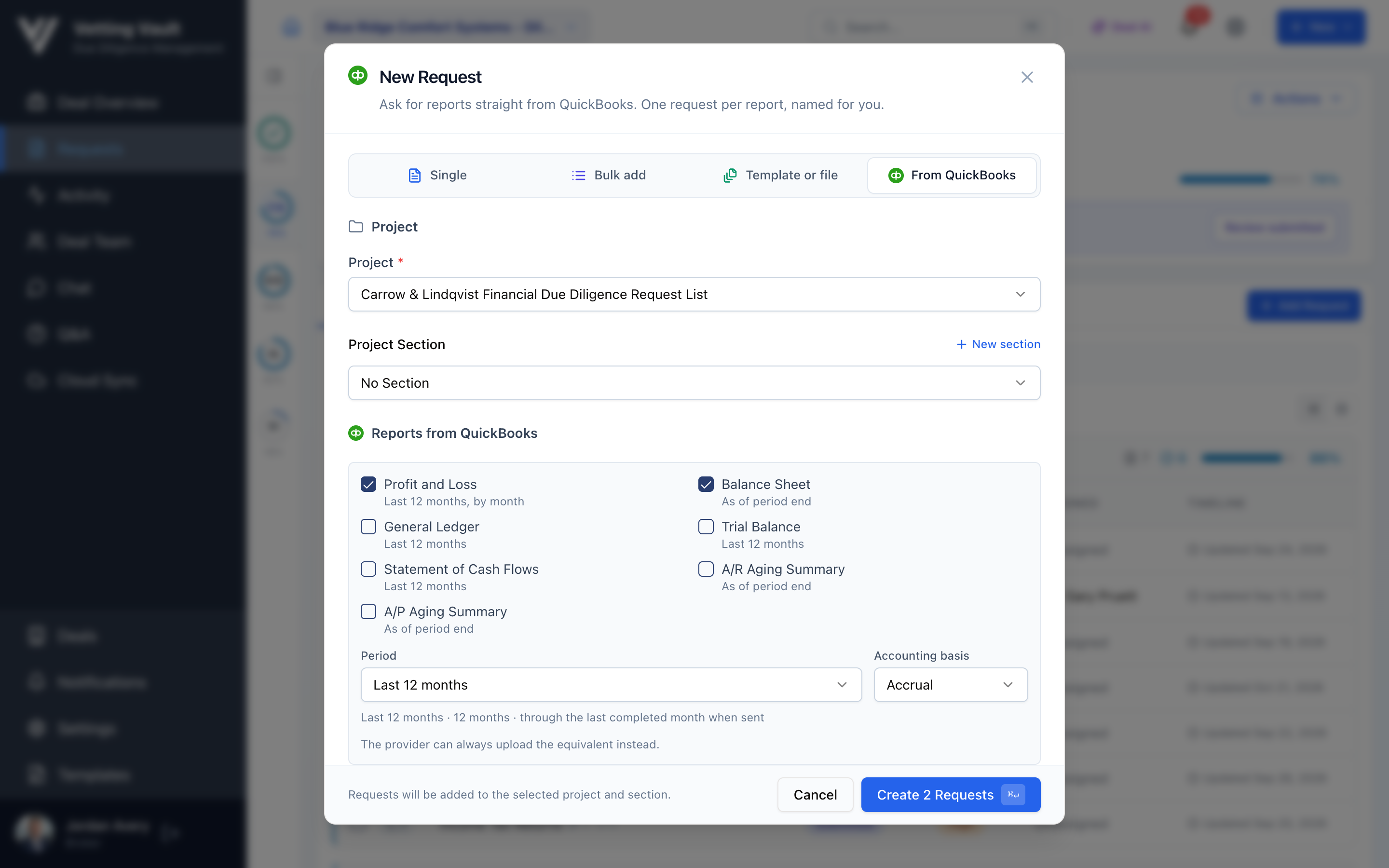
- Open the project and click Add Request.
- Choose the From QuickBooks tab.
- Pick the project section, then tick the reports you need.
- Choose the Period and the Accounting basis.
- Review the requests listed below the form. Each report becomes one request with a title and description written for you from your choices; you can edit them before creating.
- Optionally set the priority, due date and who the requests are assigned to, then click Create.
Reports, Periods and Basis
You can ask for any of these reports:
- Profit and Loss, broken out by month
- Balance Sheet, as of the end of the period
- General Ledger
- Trial Balance
- Statement of Cash Flows
- A/R Aging Summary, as of the end of the period
- A/P Aging Summary, as of the end of the period
Periods: the last 12, 24 or 36 months, year to date, the last 1, 2 or 3 full years, or a custom range with exact start and end dates. Moving periods such as the last 12 months run through the last completed month at the time the report is sent.
Basis: accrual or cash. The Statement of Cash Flows doesn’t use a basis.
Changing a request later
Sending Reports from QuickBooks
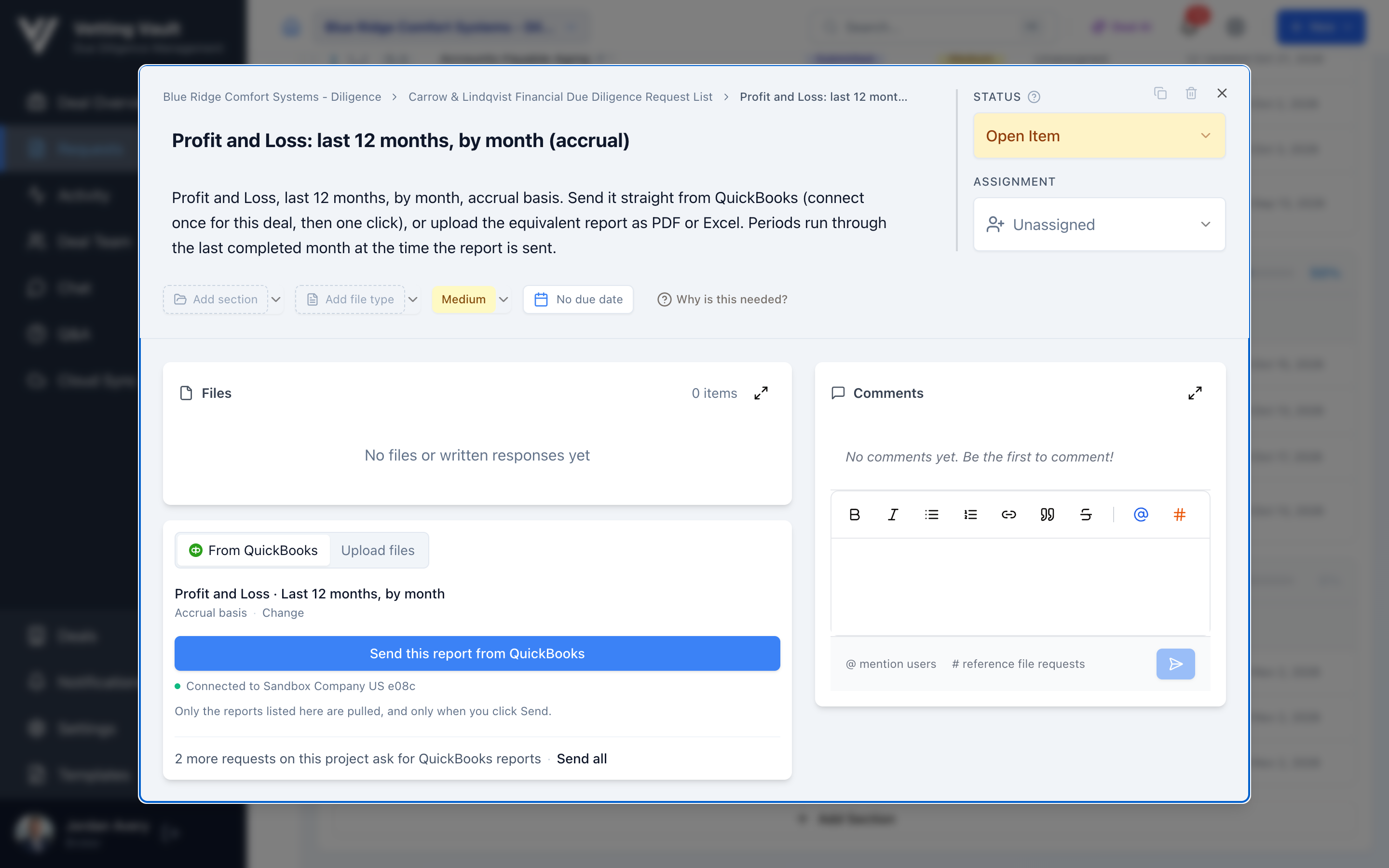
Whoever answers a QuickBooks request sees two choices at the bottom of the request: From QuickBooks and Upload files.
Connecting QuickBooks
- Open the request and choose From QuickBooks.
- Click Connect QuickBooks.
- Follow the secure connection steps: sign in to QuickBooks Online on Intuit’s own sign-in page, choose the company and approve access.
- You’re brought back to the request, now showing which company is connected.
You only connect once per deal: one connection covers every QuickBooks request on that deal.
Your QuickBooks sign-in stays with QuickBooks
Sending a Report
With QuickBooks connected, the request shows the report, period and basis it asks for and a Send this report from QuickBooks button. Click it, and the report is pulled from QuickBooks and added to the request as an Excel file, uploaded in your name. Once everything the request asks for has arrived, the request is marked submitted.
Sending a Whole Project
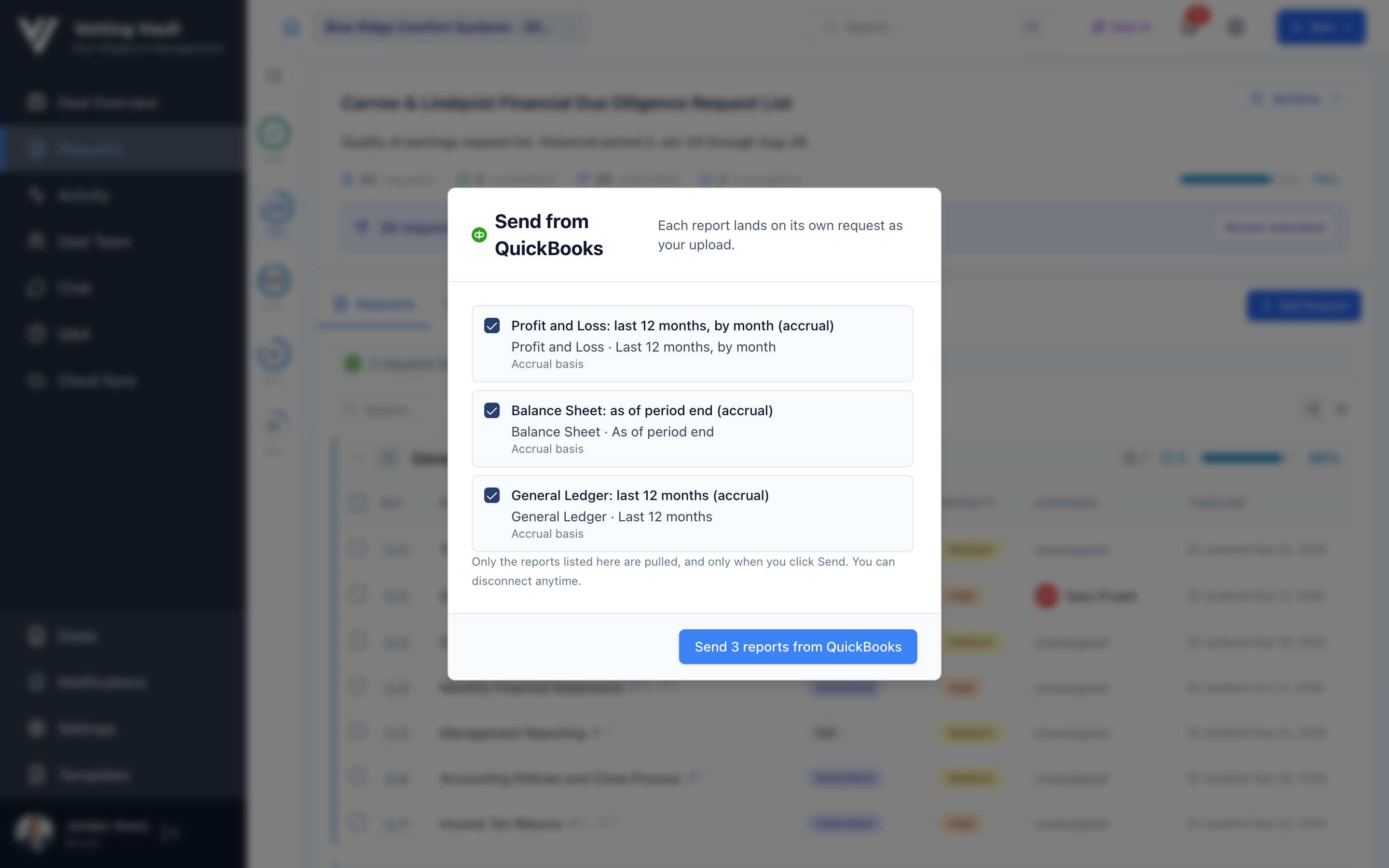
When a project has several QuickBooks requests, a banner above the request list reads, for example, “3 requests here ask for reports from QuickBooks”, and each QuickBooks request shows how many others are on the project. Click Send all to see every request that can be sent, each with its report, period and basis. Untick any you want to hold back, then click Send. The sheet shows each report’s progress, and you can close it while they finish.
If QuickBooks isn’t connected on the deal yet, the banner offers Connect QuickBooks first.
Uploading Instead
Every QuickBooks request also accepts ordinary uploads. Choose Upload files and send the equivalent report as PDF or Excel, for example if the business uses QuickBooks Desktop or another accounting system.
Who Can Do What
- Asking: anyone who can add requests to the project.
- Connecting and sending: owners, admins and contributors on the deal. Contributors join free.
- Sending from a connection: only the person who connected QuickBooks can send reports from it.
- Seeing the reports: anyone who can see the request, following the project’s usual visibility.
Disconnecting
The person who connected QuickBooks, or any owner or admin of the deal, can disconnect it from the QuickBooks part of any QuickBooks request. Reports that were already sent stay on their requests. If a connection lapses, the request asks to connect again before the next send.
Common Questions
Does this work with QuickBooks Desktop?
No, sending from QuickBooks works with QuickBooks Online. Desktop users can export the same reports and choose Upload files.
Can anyone pull reports without the owner knowing?
No. Reports are pulled only when the person who connected QuickBooks clicks Send, and only the reports listed on the request.
Which reports should I ask for?
Our guide to QuickBooks reports for due diligence covers which reports, periods and settings buyers and lenders typically need.