
Analysis
Analysis shows what is in the room and who is moving it: how far along the deal is, what’s overdue or stalled, which months and years of statements have arrived, and what each member has done. It’s built from the deal itself, so there’s nothing to set up.
Overview
On a large deal, answering “where are we?” usually means working down the request list, opening statements to check their dates, and asking around about who has what. Analysis puts those answers on one page for each deal, so you can go into a status call knowing what to chase and who to chase.
Opening Analysis
- Open the deal.
- Click Analysis in the deal’s sidebar.
When something needs attention, a banner on the deal’s overview page also links straight to it: click View analysis.
The top of the page shows when the figures were last updated. Click Refresh to bring them up to date.
Who Can See It
Analysis is for the people running the deal: the person who created it and the deal’s admins. Contributors, reviewers and guests don’t see it. If the deal requires an NDA, it must be signed first, as for the rest of the deal. See Team & Roles to make someone an admin.
Small Deals and Large Deals
The page grows with the deal. A deal with one project and up to 40 requests reads as one short page. Anything larger gets four tabs: Overview, Documents, Requests and People. Cards only appear when there’s something to show in them.
The Overview Tab
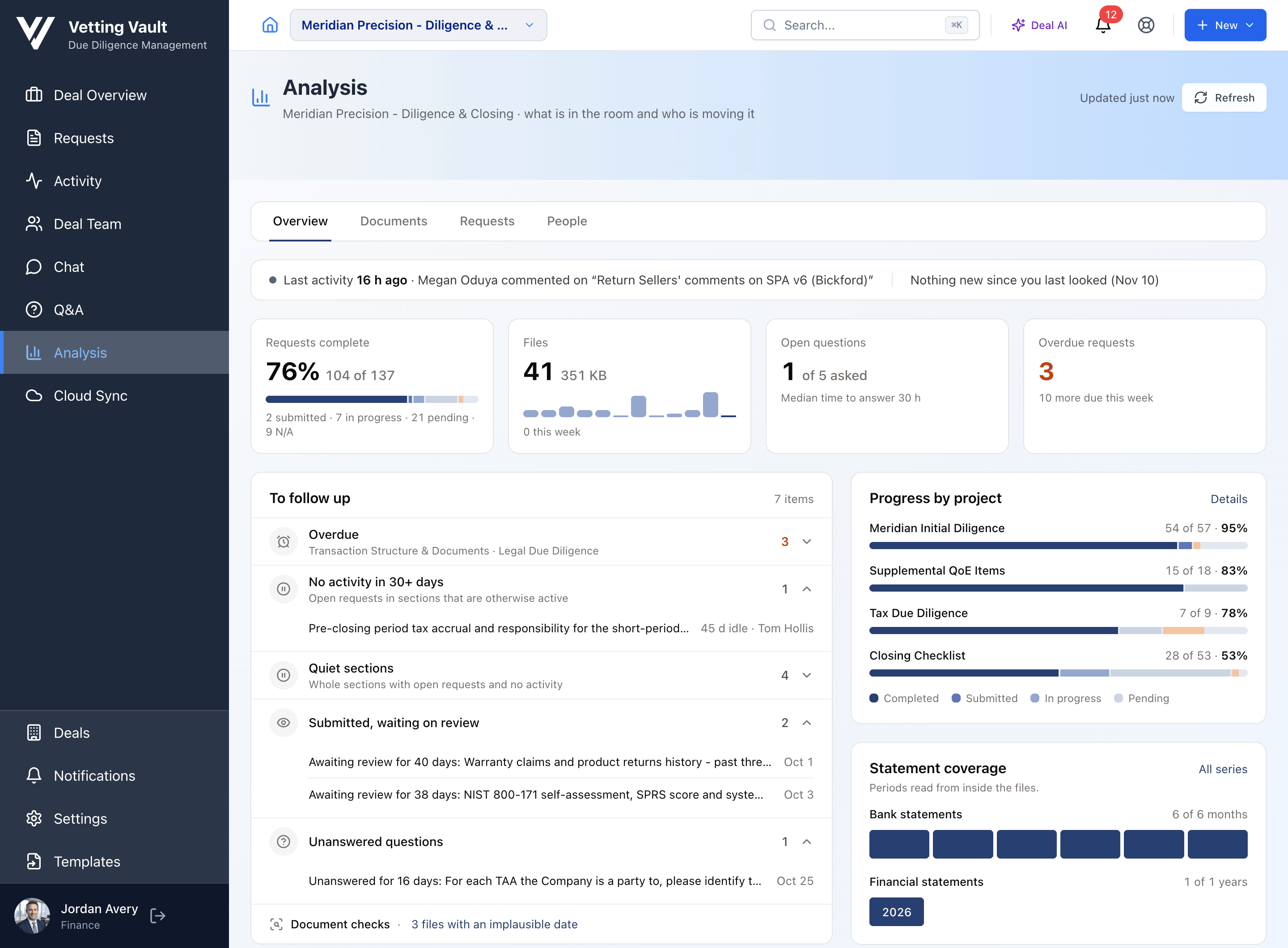
The Overview starts with a line about the deal’s latest activity and what’s new since you last looked, then four figures:
- Requests complete: the share of requests completed, with counts submitted, in progress, pending and marked N/A.
- Files: how many files are in the room, with uploads over recent weeks.
- Open questions: Q&A questions still waiting for an answer, and the median time to answer.
- Overdue requests: requests past their due date, and how many more are due this week.
Beside the follow-up list, Progress by project shows each project’s requests as completed, submitted, in progress and pending, and Statement coverage previews which statement periods are in the room.
To Follow Up
The To follow up list groups everything that needs a nudge. Expand a group to see its items.
- Overdue: requests past their due date.
- No activity in 30+ days: open requests in sections that are otherwise active.
- Quiet sections: whole sections with open requests and no activity.
- Submitted, waiting on review: requests with files in that nobody has reviewed yet.
- Unanswered questions: Q&A questions with no answer yet.
- Invites not accepted: people invited to the deal who haven’t joined.
- Intake links with no uploads: intake links nobody has uploaded to yet.
Document Checks
At the bottom of the list, Document checks points out files worth a second look:
- Series with gaps: a run of statements with a period missing between the first and last ones found.
- Files with an implausible date: a file whose date was read as before 1990 or more than a year in the future, or couldn’t be read at all. It’s left off the coverage grid until someone checks it.
- Possible duplicates: files that look like copies of each other.
- To check placement: a file that looks like one kind of document but sits on a request for something else.
Checks are prompts, not verdicts
The Documents Tab
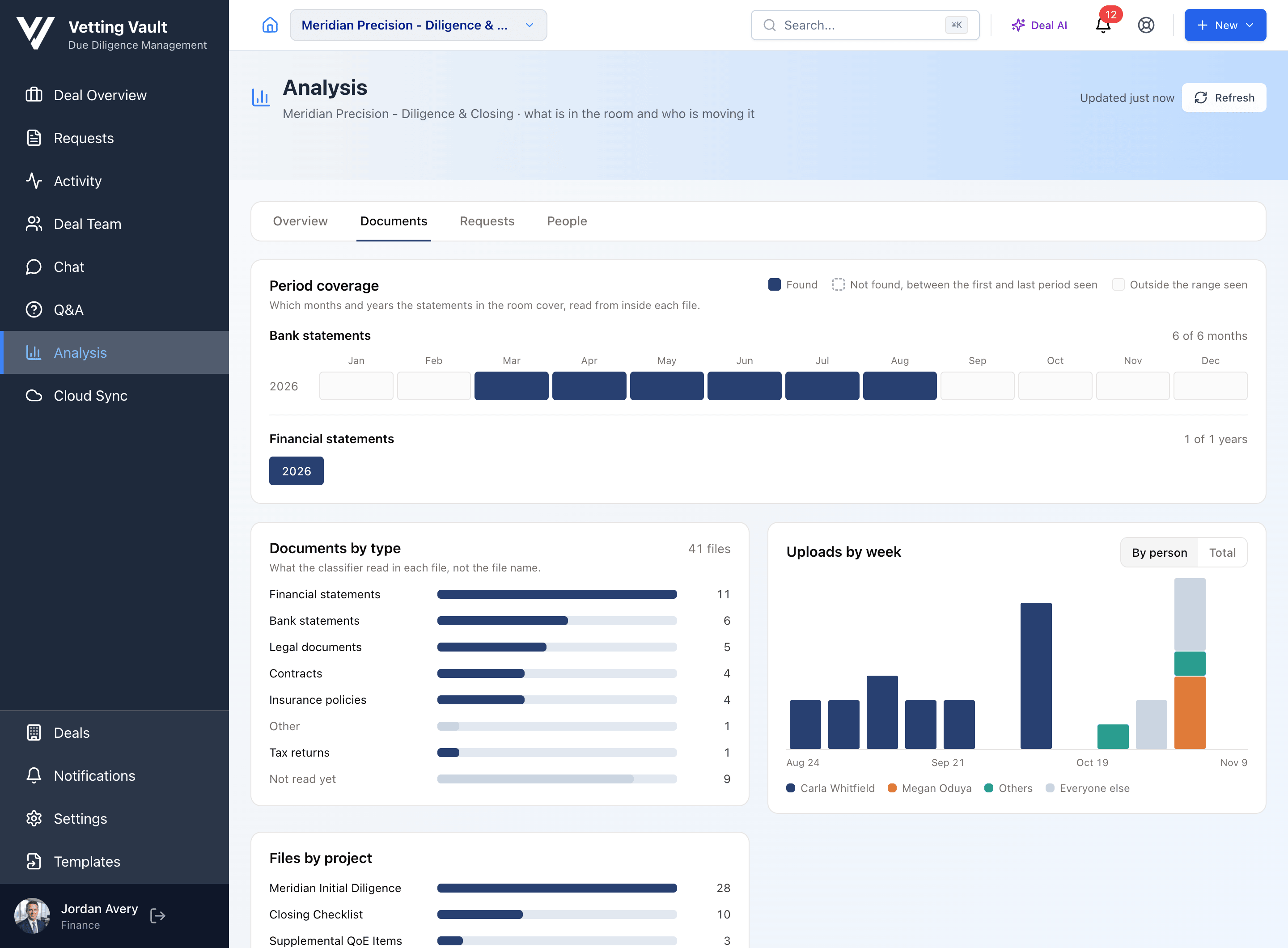
- Period coverage: which months and years the statements in the room cover (below).
- Documents by type: files counted by what Vetting Vault read in each one, not by file name. Files still being read, or that couldn’t be read with confidence, are counted as Not read yet.
- Uploads by week: uploads over time, by person or in total.
- Files by project: where the files are.
Period Coverage
Bank statements are laid out by month, and financial statements and tax returns by year. Each period is marked:
- Found: a file in the room covers it.
- Not found, between the first and last period seen: nothing covers it, though earlier and later periods are in.
- Outside the range seen: before the first or after the last period found.
Ask for the missing month
The Requests Tab
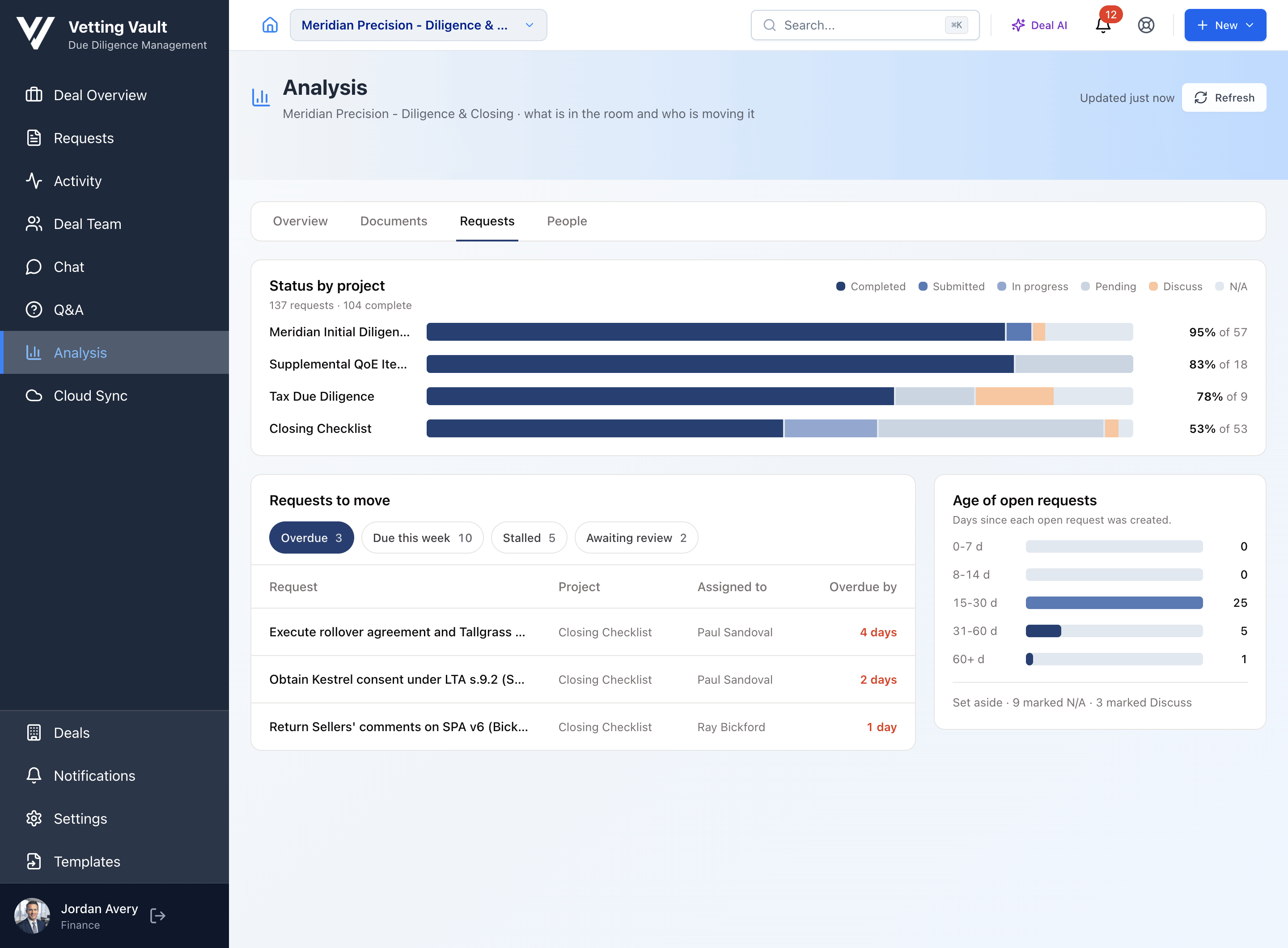
- Status by project: every status on one bar per project, including requests set aside as N/A or Discuss.
- Requests to move: switch between Overdue, Due this week, Stalled and Awaiting review to see each request, its project and who it’s assigned to.
- Age of open requests: how many days open requests have been open, so the old ones don’t hide.
The People Tab
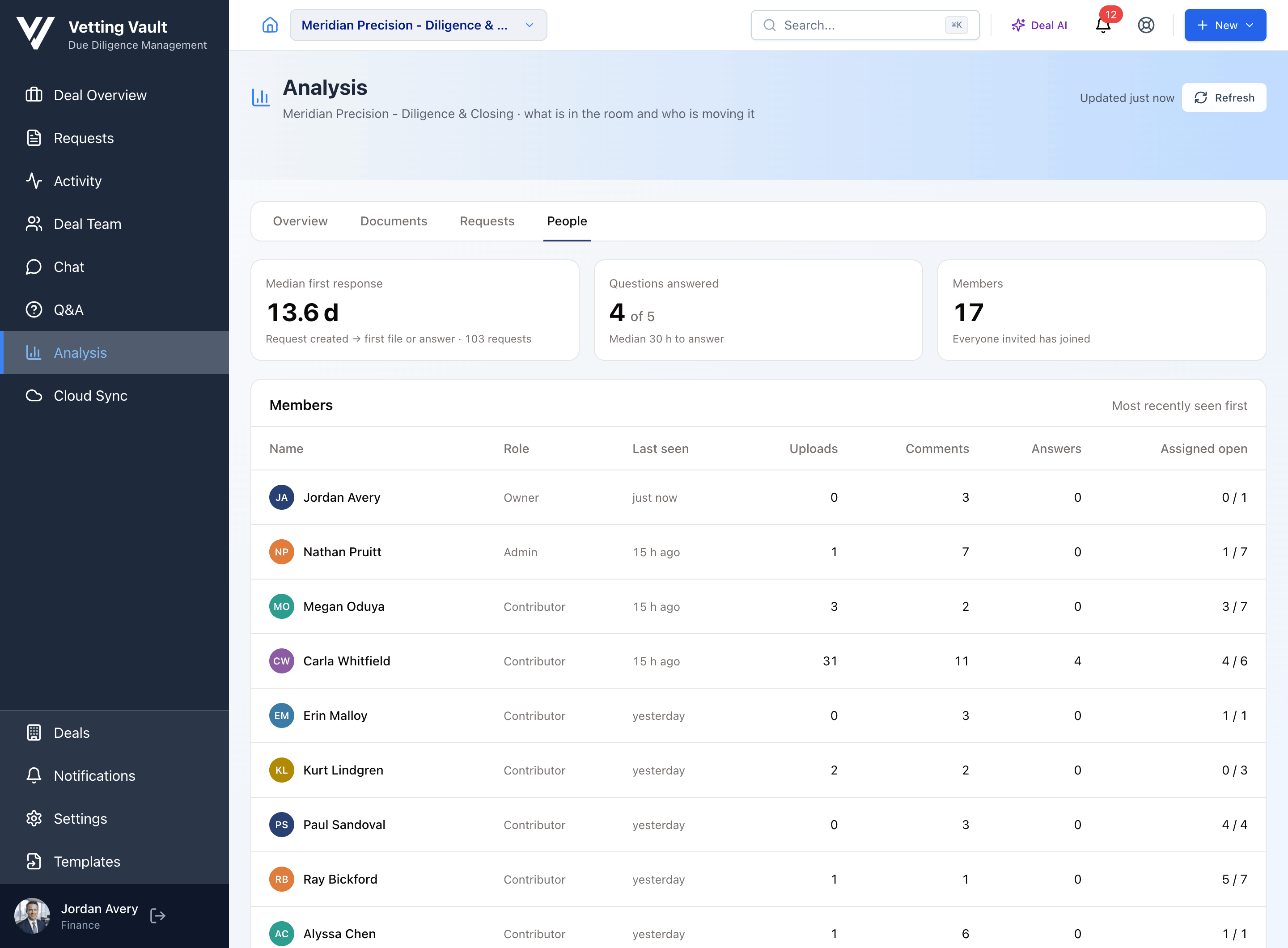
- Median first response: the median time from a request being created to its first file or answer.
- Questions answered: how many Q&A questions have answers, and the median time to answer.
- Members: how many people are on the deal, and whether everyone invited has joined.
- Members table: each person’s role, when they were last seen in Vetting Vault, and their uploads, comments, answers and open assignments on this deal.
- Intake links: each intake link, who it was sent to, and its uploads.
- Who downloaded: who has downloaded files, how many, and when they last did.
Last seen
Where the Numbers Come From
Progress, overdue items, ages, response times and activity are counted from the deal’s own requests, files, questions, members and activity log. Nothing is written by AI when you open the page.
Document types and statement periods come from the reading Vetting Vault does on each file when it’s uploaded (the same reading behind each file’s summary). That’s why coverage reflects what’s inside the files rather than what they’re called, and why a file that hasn’t been read yet doesn’t count toward coverage.
Common Questions
Why can’t a contributor see Analysis?
It’s meant for whoever runs the deal. Make the person an admin on the deal if they need it.
A statement I uploaded isn’t on the coverage grid. Why?
It may still be being read, or it couldn’t be read with confidence; those files show as Not read yet under Documents by type. Click Refresh after a few minutes.
Does Analysis change anything on the deal?
No. It only reads the deal. Nothing on the page edits requests, files or members.